

If you need to add multiple email accounts at once, use the CSV bulk import instead of configuring each one manually.
How to Import
Go to Email Accounts and click Add Email Account.
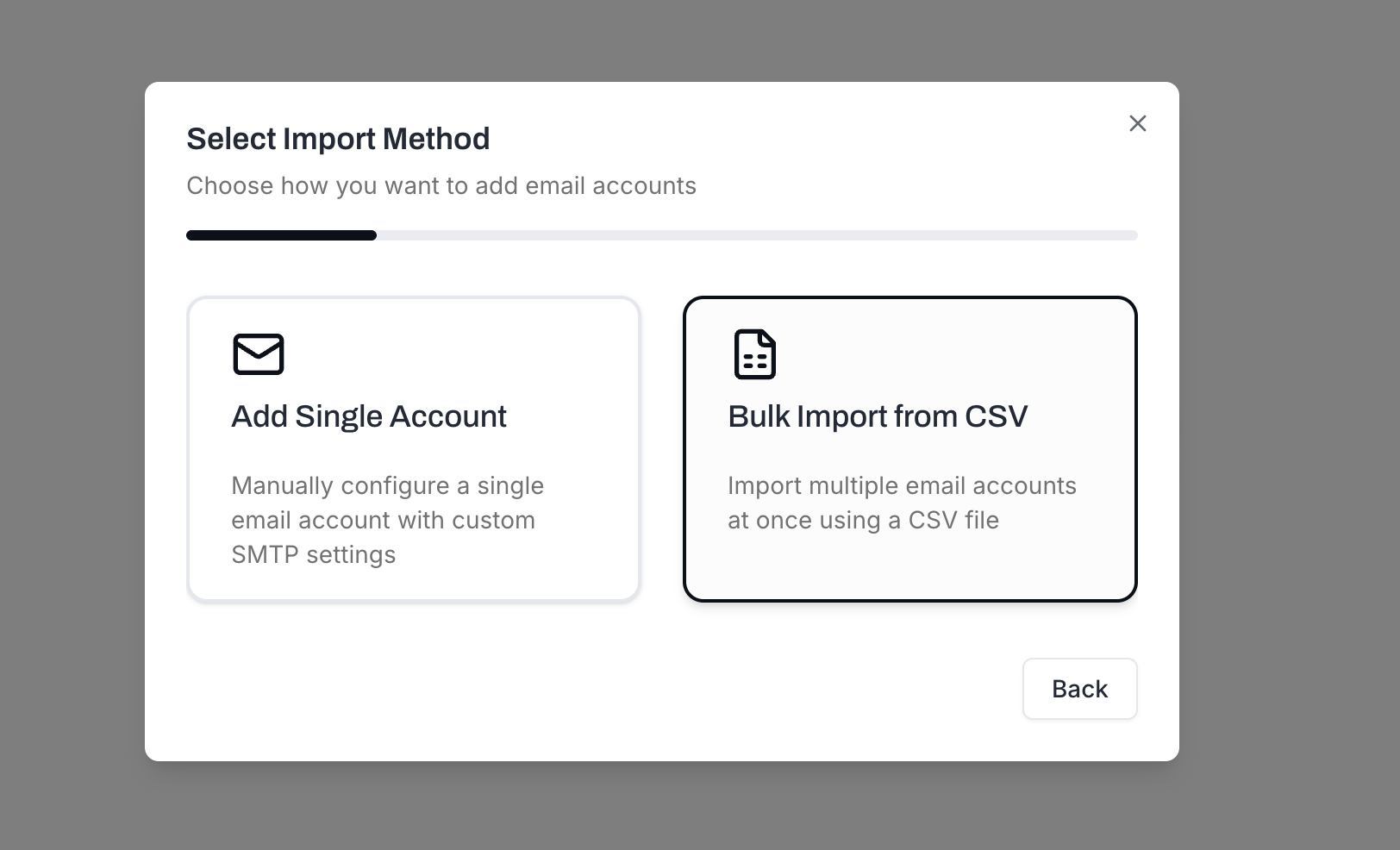
Select Custom SMTP or CSV Upload.
Select Bulk Import from CSV.
Upload your CSV file by dragging it into the upload area or clicking to browse. Supported formats: CSV, XLSX, XLS (max 10 MB).

Tip: Click Download Template to get a pre-formatted CSV file with all the correct column headers. Fill it in and upload.
In the Map CSV Columns step, match your CSV columns to MailBeast fields. Click Auto-Map Fields to let MailBeast detect mappings automatically. The Preview column shows sample data from your file so you can verify each mapping.
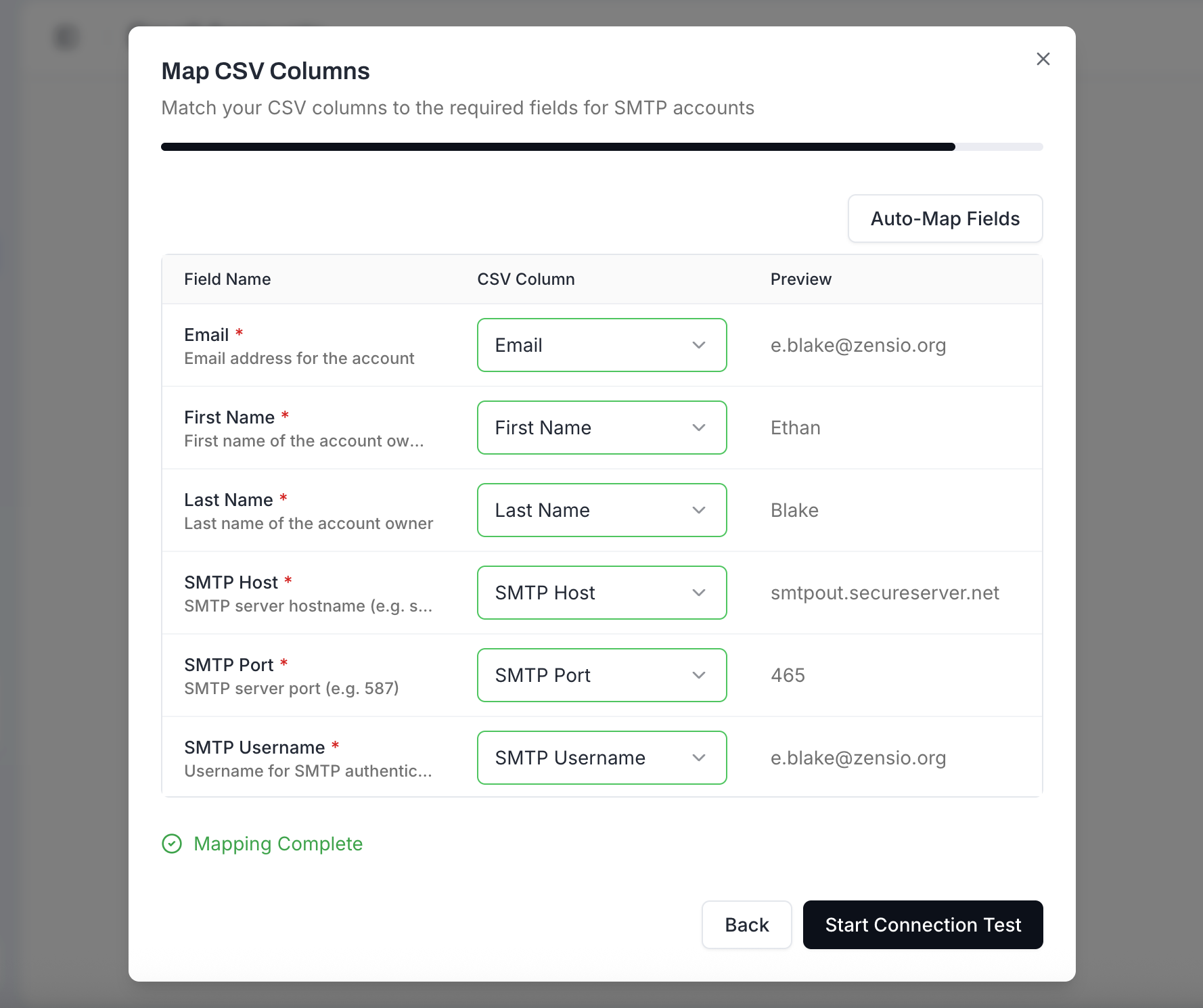
Once all required fields show green borders and you see Mapping Complete, click Start Connection Test. MailBeast will test SMTP and IMAP connectivity for every account in your file.
After testing completes, review the results. Each account shows individual SMTP and IMAP status badges. Select the accounts you want to import (only accounts with valid connections can be selected) and click Import Selected.
CSV Template Columns
Required: Email, First Name, Last Name, SMTP Host, SMTP Port, SMTP Username, SMTP Password, IMAP Host, IMAP Port, IMAP Username, IMAP Password.
Optional: Reply-To Address.
Tips
Download the template before building your CSV from scratch - it has all the correct headers.
Duplicate detection: Accounts with email addresses that already exist in your organization are skipped automatically.
Failed connections: Accounts that fail the connection test are not imported. Fix the credentials and try again.
Save your CSV with UTF-8 encoding to avoid issues with special characters.
Next Steps
Configure account settings - Set signatures, reply-to addresses, and timezone.
Enable warmup - New accounts need warmup before sending campaigns.
Verify DNS records - Make sure every domain has proper SPF, DKIM, and DMARC.