Every email account in MailBeast has individual settings that control sending behavior, warmup strategy, and how the account appears to recipients. You can also edit settings in bulk across multiple accounts at once.
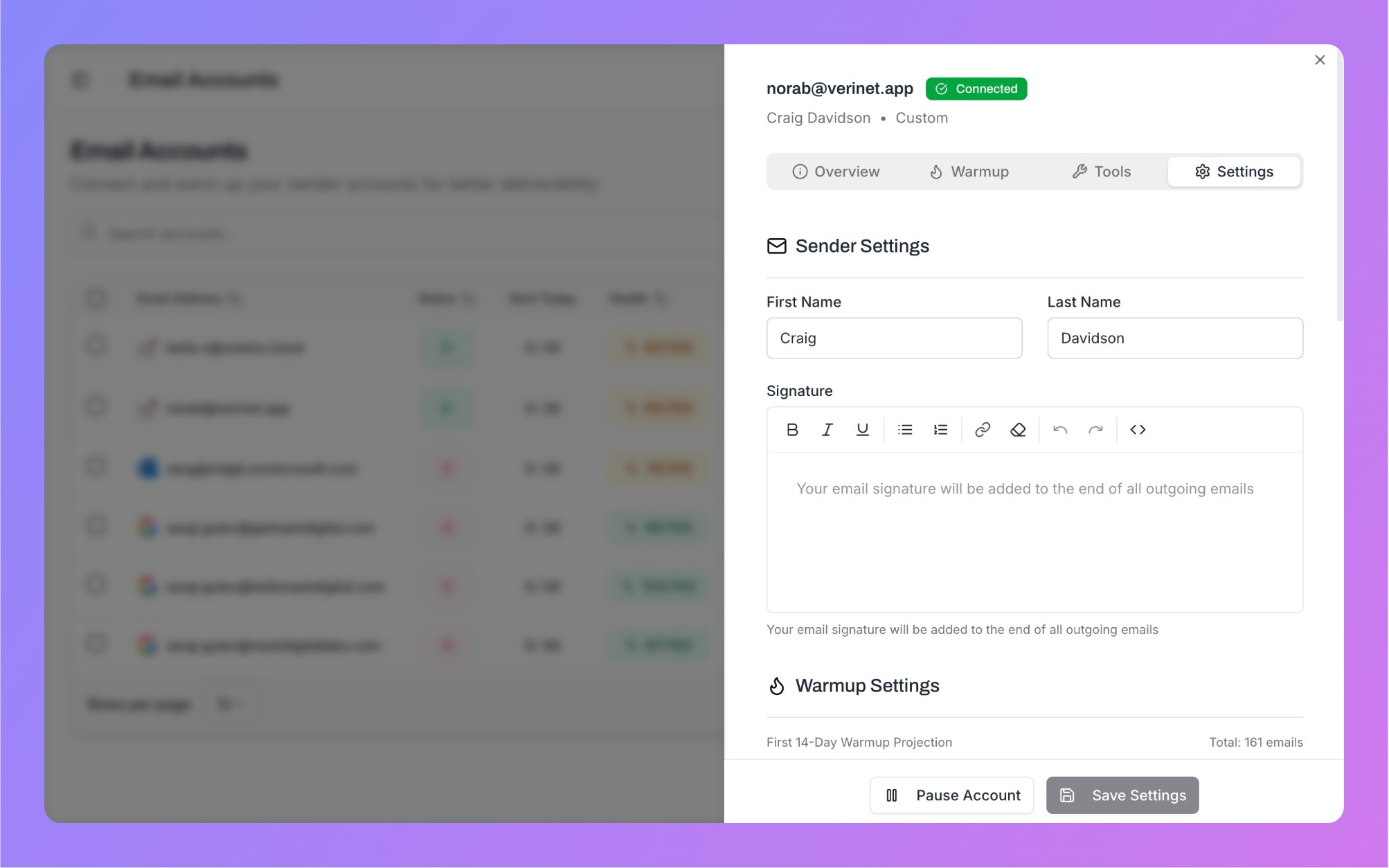
Go to Email Accounts.
Click on any account to open the detail sheet.
Go to the Settings tab.
The detail sheet has four tabs: Overview (stats and DNS health), Warmup (enable/disable warmup), Tools (connection test), and Settings (all configurable options below).
First Name / Last Name - The display name recipients see. Falls back to OAuth profile name if not set.
Email Signature - Appended to every email (campaigns and warmup). Uses a rich text editor with formatting, links, and HTML editing. Keep signatures compact - heavy HTML and images can trigger spam filters.
Reply-To Address - Where replies are delivered. Leave blank to use the sending address.
Warmup Strategy - Choose Standard, Aggressive, or Custom. A visual ramp-up chart shows the planned progression for the first 14 days based on your selection.
Custom Strategy (only when strategy is Custom):
Warmup Limit - Max warmup emails per day (0-30).
Ramp-Up - Gradually increase volume each day. Set the Increase Per Day value (1-10).
Reply Rate - Percentage of warmup emails that should receive replies (20-80%).
Randomizer - Adds variation to daily volume to simulate natural sending (0-50%).
Skip Weekends - Skip warmup sends on Saturdays and Sundays.
Warmup Timezone - When warmup emails are scheduled. Falls back to organization timezone, then UTC.
Automation Language - Language for AI-generated warmup email content. Match this to your future outreach campagins locale for natural-looking warmup history.
Messages Per Day Limit - Max emails this account can send per day across all campaigns (0-200).
Min Gap Between Messages - Minimum delay between consecutive emails in seconds (1-300). Helps simulate human sending patterns.
Custom Tracking Domain - Select a verified tracking domain for open/click tracking. Unverified domains are shown but disabled.
Enable Warmup Tracking - Track opens and clicks in warmup emails (only available when a tracking domain is set and warmup is enabled).
Click Manage Tags to add or remove tags from the account. Tags help you organize and filter accounts by client, region, or purpose.
You can edit settings across multiple accounts at once directly from the Email Accounts page:
On the Email Accounts page, select accounts using the checkboxes next to each account in the list. Click Select all existing to select every account on the page.
A bulk actions panel appears at the bottom of the page showing how many accounts are selected.
Click the Actions dropdown in the panel to access:
Bulk Edit Settings - Opens the account detail sheet in bulk mode. Any changes you save will apply to all selected accounts at once (Sender Settings, Warmup Settings, Campaign Sending Settings, Tracking, and Tags).
Bulk Edit Tags - Add or remove tags across all selected accounts.
Activate Selected / Deactivate Selected - Toggle account status in bulk.
Delete - Remove selected accounts (with confirmation).
Click Export to download selected accounts as a CSV file.
Understanding Connection Status - Learn what the SMTP, IMAP, and OAuth status indicators mean.
Account Health Score Explained - Understand how MailBeast evaluates your account's deliverability potential.

