Whether you forgot your password or just want to change it for security, MailBeast gives you several ways to update your credentials depending on your situation.
If you cannot sign in because you do not remember your password:
Go to the MailBeast login page.
Click Forgot Password? next to the password field.
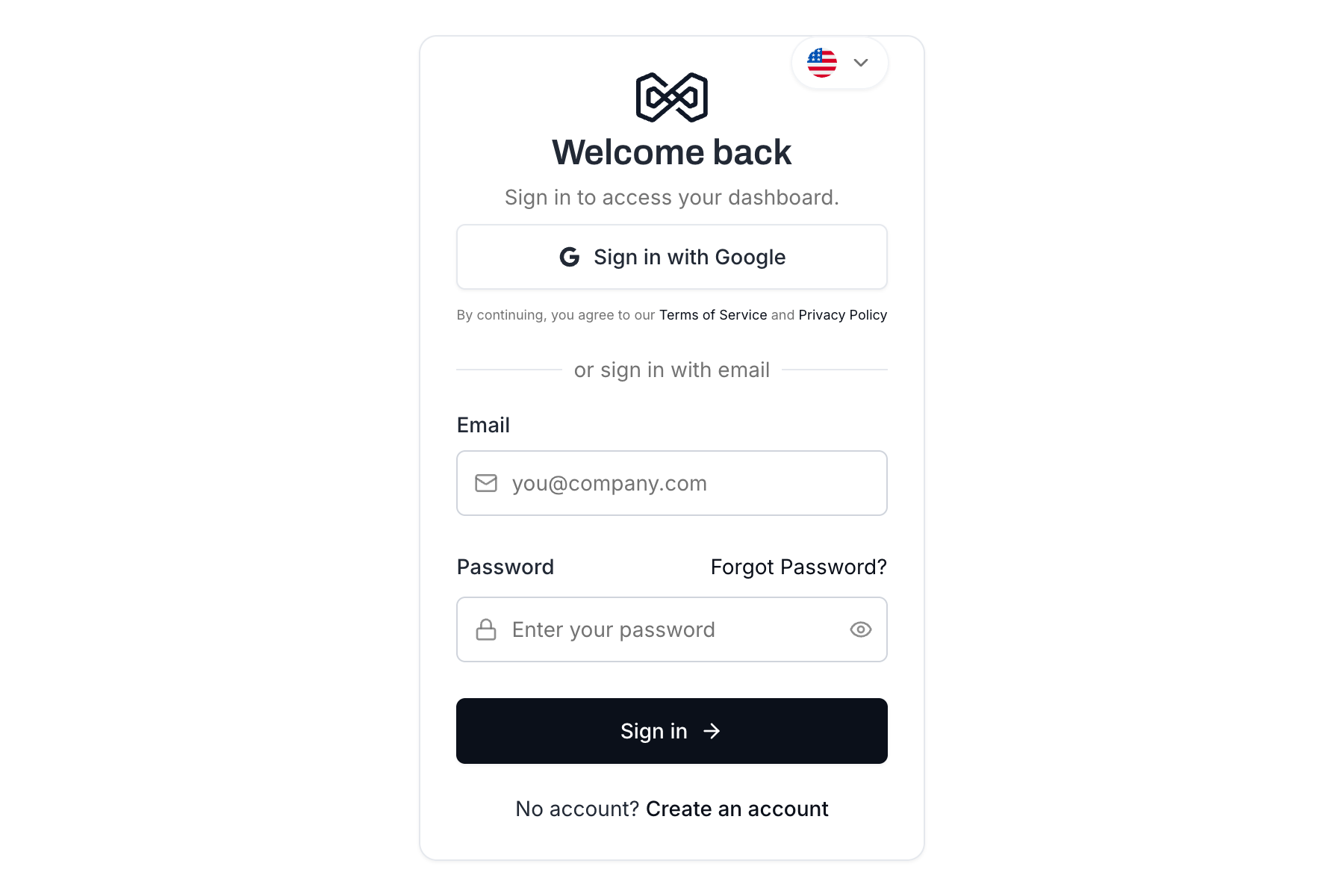
Enter the email address associated with your MailBeast account.
Click Send reset link.
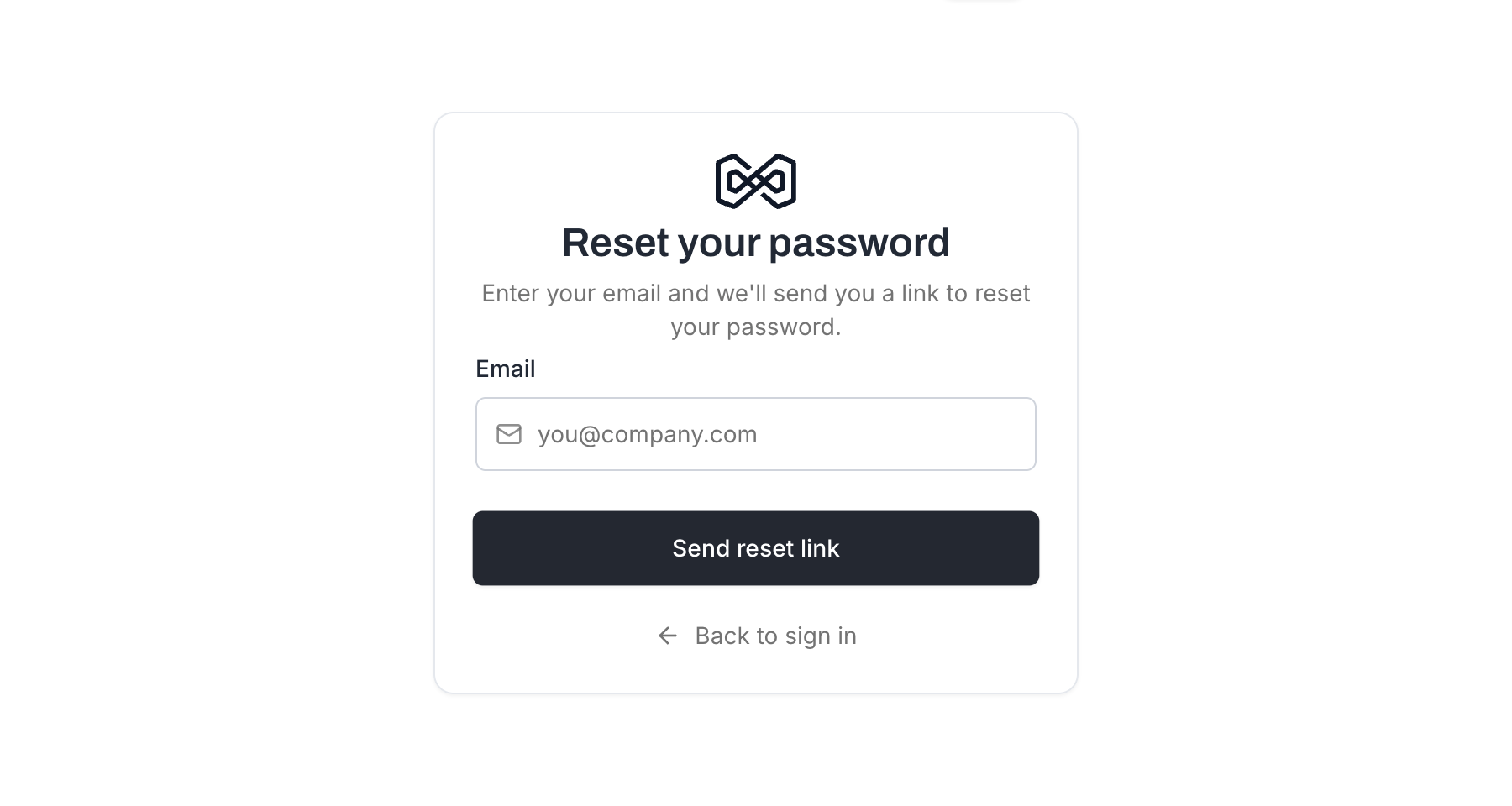
Check your inbox for an email from MailBeast with a password reset link.
Click the link in the email. It will open a page where you can enter a new password.
Enter your new password, confirm it, and save.

The reset link expires after 1 hour. If it has expired, go back to the login page and request a new one.
If you are already signed in and want to update your password:
Click Settings in the left sidebar.
You will land on the Profile tab.
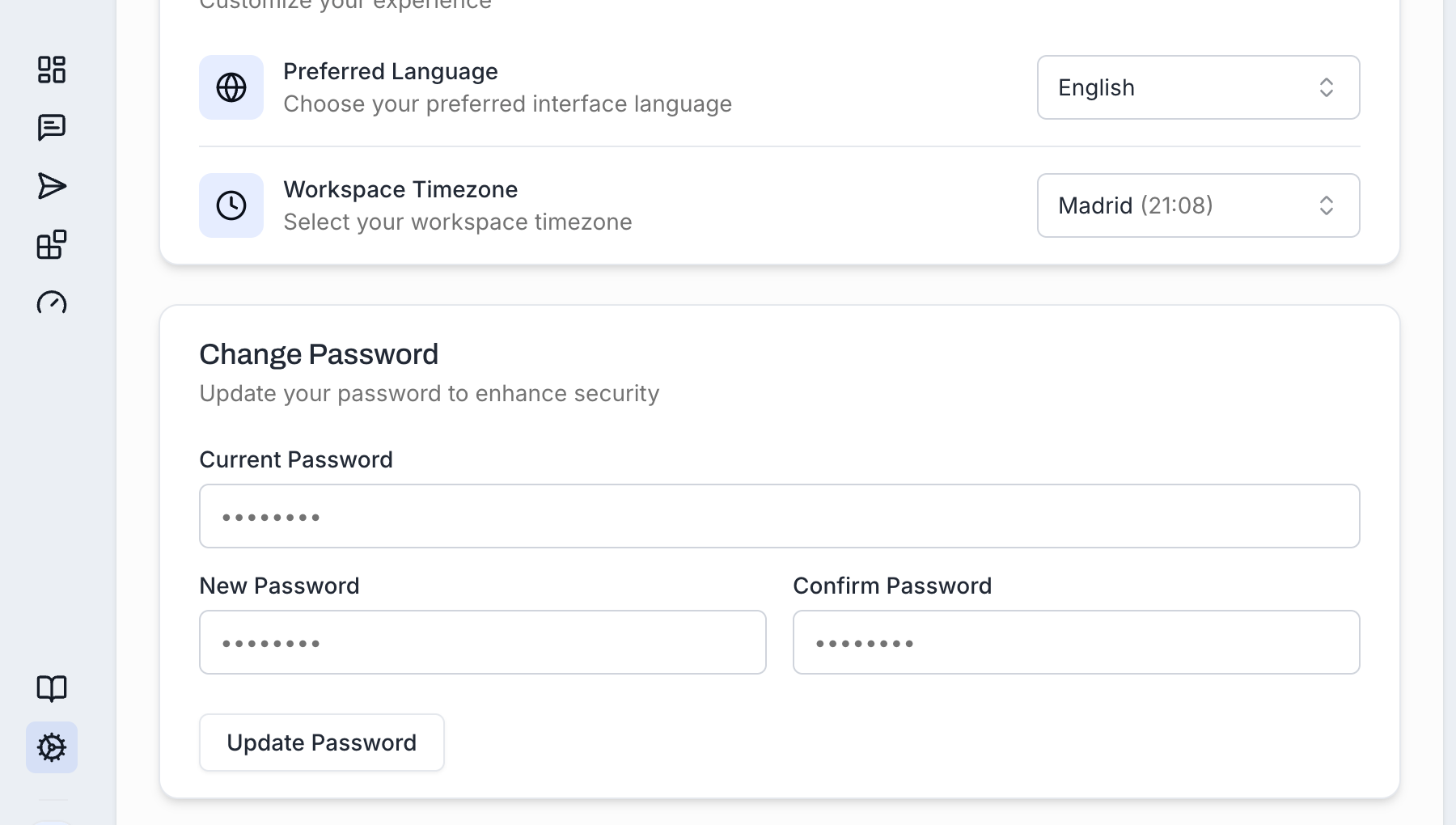
Scroll down to the Change Password section.
Enter your Current Password.
Enter your New Password and Confirm Password (minimum 8 characters).
Click Update Password.
If you signed up using Sign in with Google, your account does not have a standalone password by default. You can set one so you have the option to log in with email and password as well:
Go to Settings > Profile.
Scroll down to the password section - you will see a Set Password option instead of "Change Password."
Click Set Password. MailBeast sends a verification code to your Google email.
Enter the verification code in the dialog that appears.
Create and confirm your new password.
Once set, you can log in with either Google SSO or your email and password.

Important: Setting a password does not disconnect your Google account. Both login methods remain active.
Check your spam or junk folder.
Reset emails may take a few minutes to arrive. Wait and try again.
Reset links are valid for 1 hour. If more time has passed, request a new link from the login page.

