MailBeast lets you invite teammates to your workspace so you can collaborate on campaigns, manage email accounts, and review analytics together. This feature is free of charge and included in all plans. Each team member gets a role that controls what they can see and do.
MailBeast has three roles with different access levels:
Role | What They Can Do |
|---|---|
Owner | Full access. Workspace owner who can manage team members, billing, and all platform features. Every workspace has at least one Owner. |
Admin | Can manage most settings and use all platform features. Can invite and remove members. Cannot access billing. |
Viewer | Read-only access. Can view campaigns, analytics, and email accounts but cannot create, edit, or delete anything. Cannot see billing or manage the team. |
You must be an Owner or Admin to invite new users.
Go to Settings > Users & Roles tab.
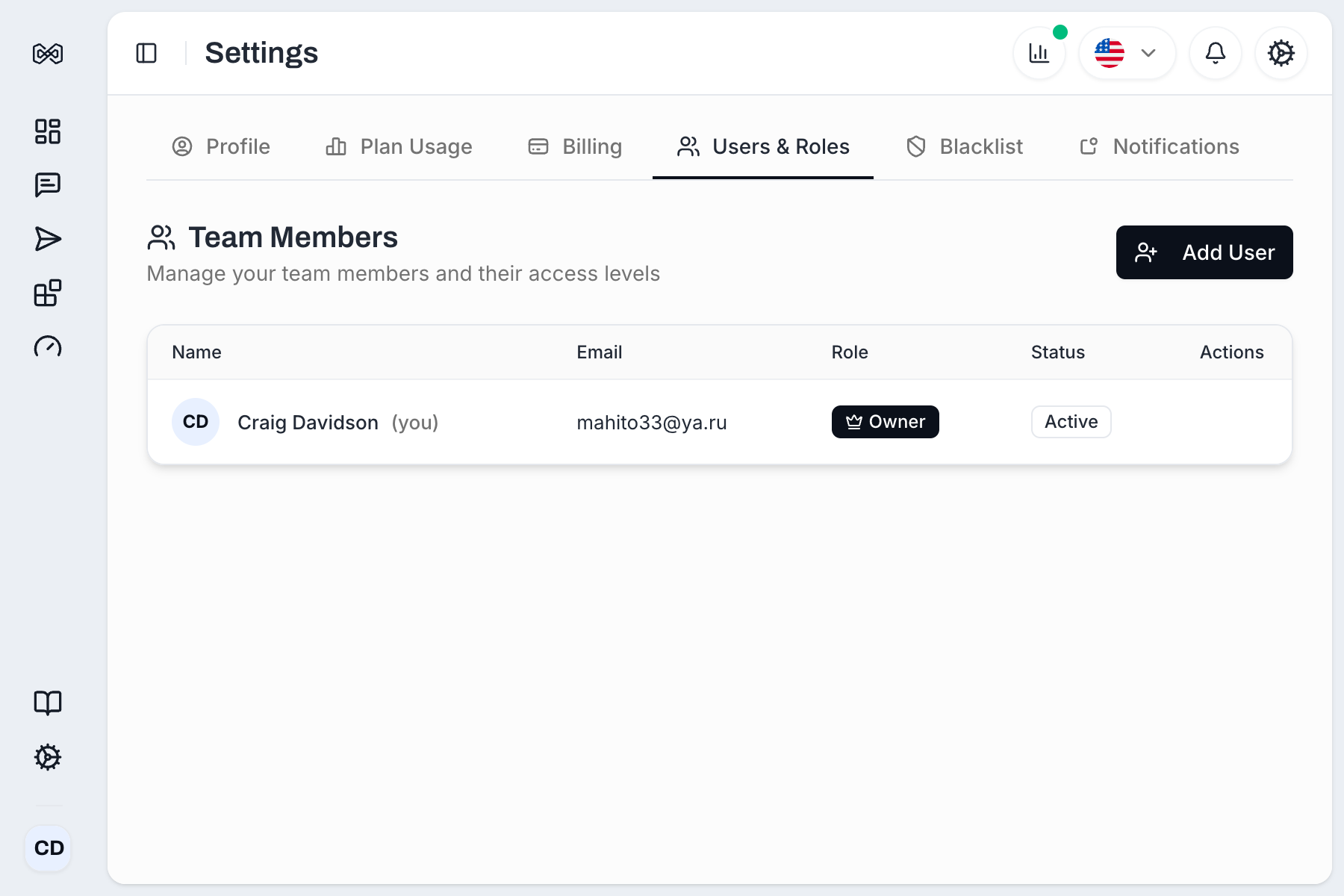
Click the Add User button in the top-right corner.
Fill in the invitation form:
Name (optional) - The invitee's display name.
User Email (required) - The email address where the invitation will be sent.
Role - Choose Admin or Viewer.
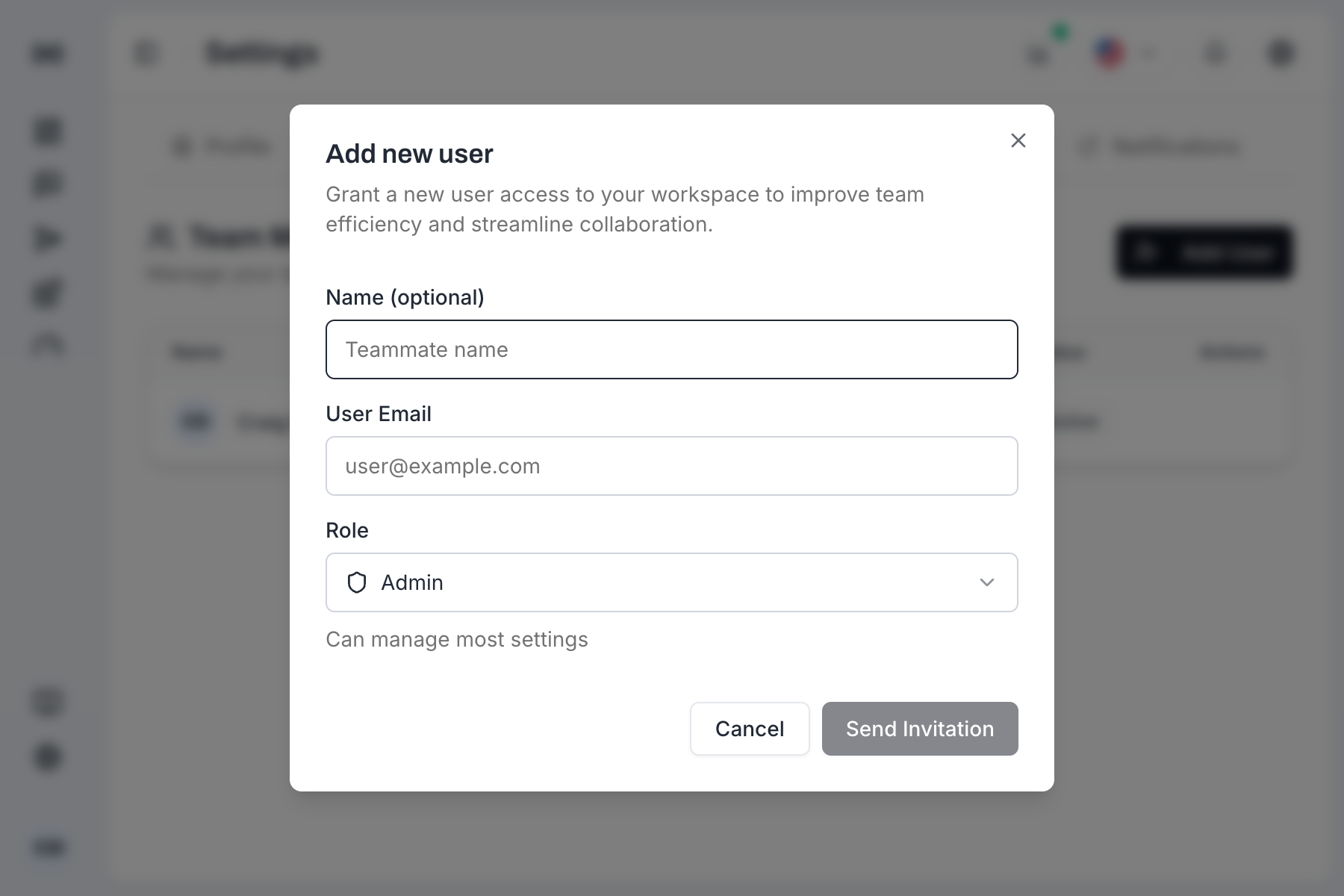
Click Send Invitation.
The invitee will receive an email with a link to accept the invitation and join your workspace.

Note: Invitations expire after 7 days. If the invitee has not accepted by then, you can resend the invitation.
After sending an invitation, it appears in a Pending Invitations section below the team members table. From there you can:
Resend - Send the invitation email again if the invitee did not receive it.
Revoke - Cancel the invitation before it is accepted.
Owners can change the role of any team member:
Find the member in the Users & Roles table.
Click the role dropdown or action menu next to their name.
Select the new role.
Owners can remove members from the workspace:
Find the member in the Users & Roles table.
Click the action menu (three dots) in the Actions column.
Confirm the removal in the dialog.
The removed user will lose access to the workspace immediately.
Ask them to check their spam or junk folder.
Verify you entered the correct email address.
Try resending the invitation from the Pending Invitations section.
Make sure you are on the Users & Roles tab in Settings.
Only Owner and Admin roles can invite users. If you are a Viewer, you will not see this button.
Currently, only one Owner is assigned when the workspace is created. Contact support if you need to transfer ownership.

