You can change your MailBeast plan at any time. Upgrades take effect immediately, while downgrades are scheduled for the end of your current billing period so you do not lose any paid time.
Go to Settings > Plan Usage tab.
Scroll down to Available Plans.
Find the plan you want and click Upgrade.
A checkout dialog appears showing:
The new plan price
Proration credit for unused time on your current plan
The amount you will be charged today
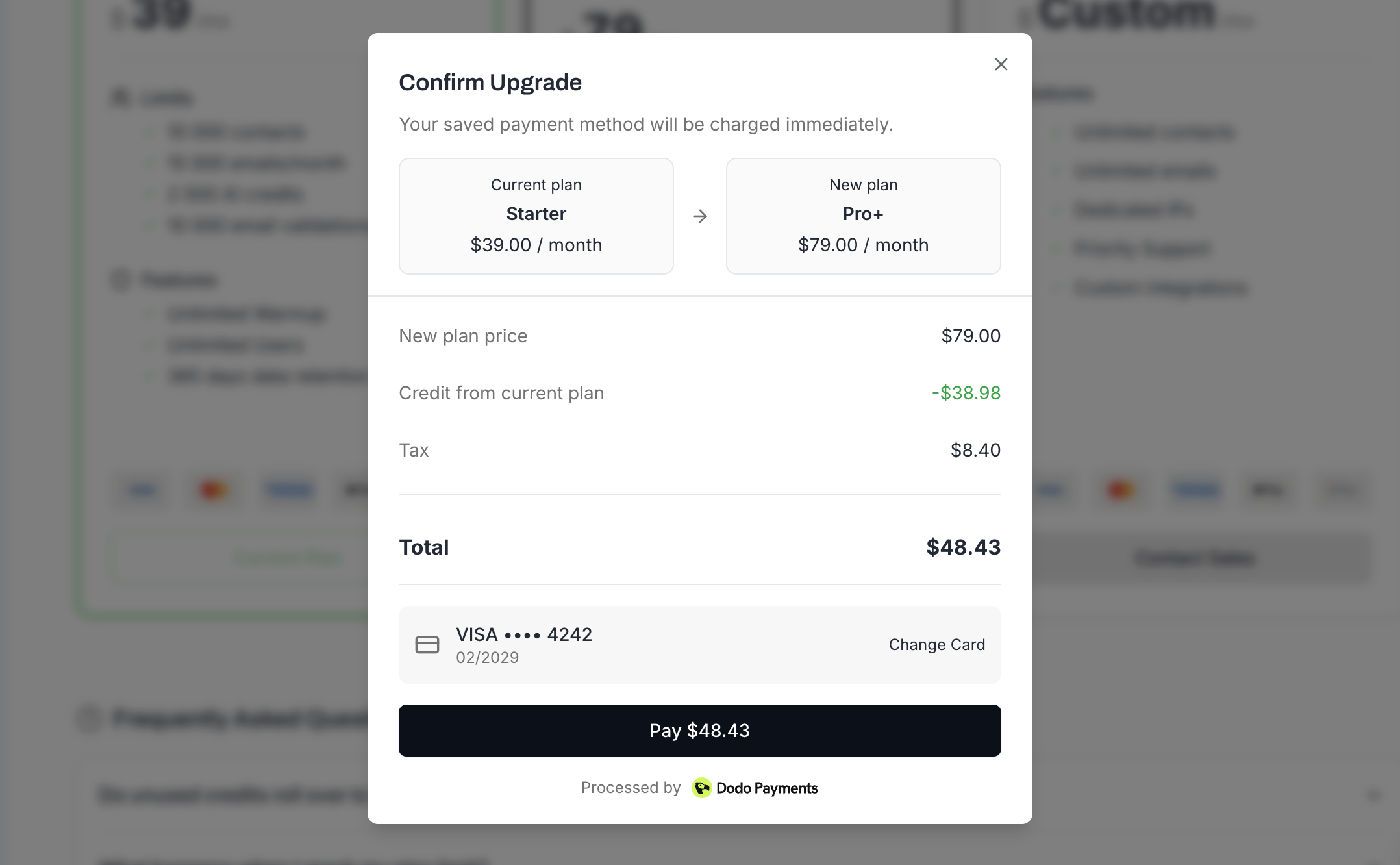
Confirm payment. If you have a card on file, it will be charged automatically. Otherwise, you will enter payment details.
Your new plan limits are active immediately.
You can also start from the Billing tab:
Click View Plans next to your current subscription.
Select the plan you want to upgrade to.
Go to Settings > Plan Usage tab.
Scroll down to Available Plans.
Select the lower plan you want to switch to.
Review the changes. The dialog will show:
Your current plan and the target plan
When the downgrade takes effect (end of current billing period)
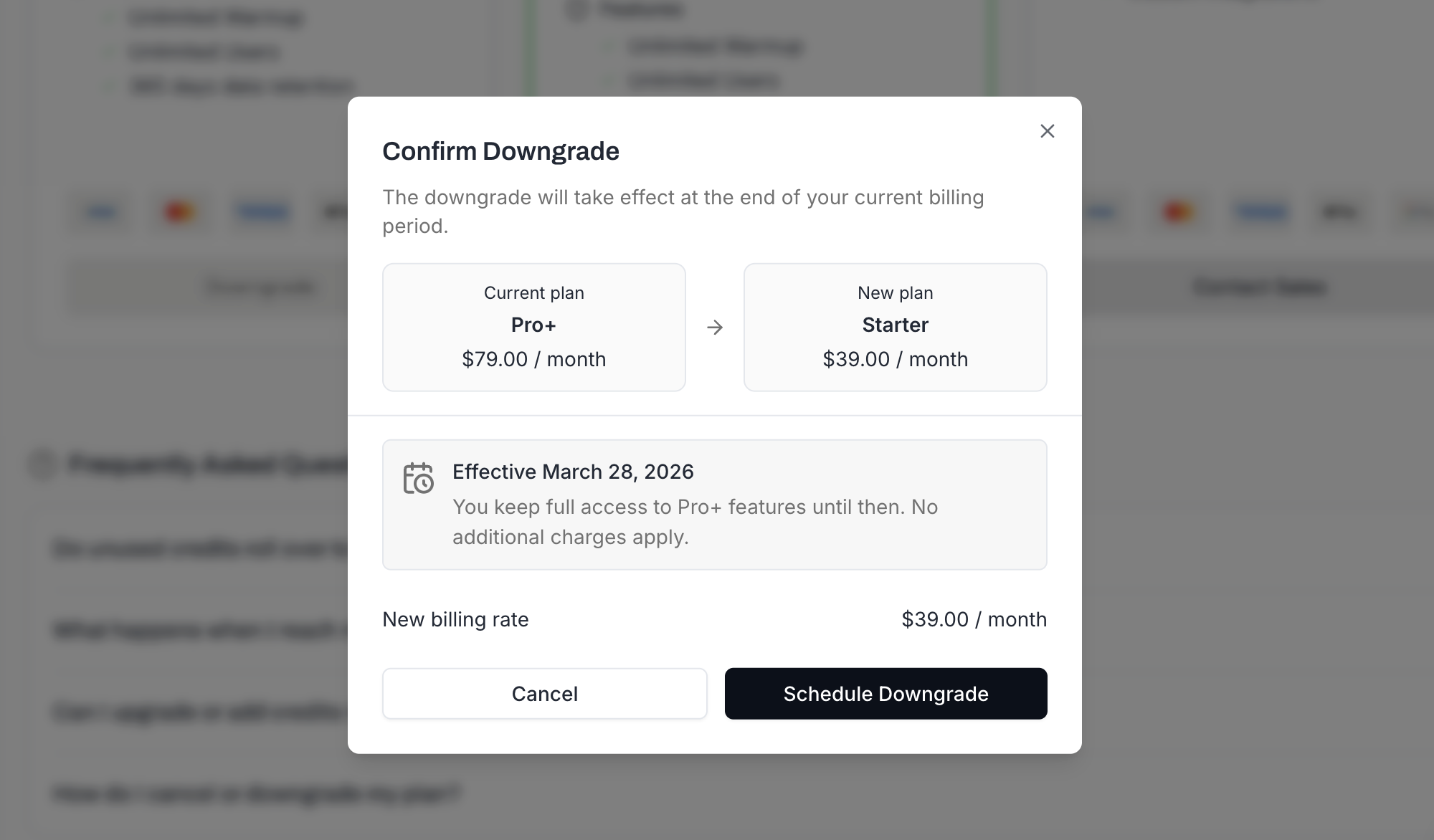
Confirm the downgrade.
Downgrades are scheduled, not instant. You will keep your current plan and all its limits until your billing period ends. On the next billing date, your plan switches to the lower tier.

Changed your mind? If you have a scheduled downgrade, you can cancel it from the Plan Usage tab by clicking Keep Plan before the current billing period ends.
Contacts - If your contact count exceeds the new plan's limit, you will not be able to add new contacts. Existing contacts are not deleted.
Email history - All sent emails and analytics remain accessible within the new plan's data retention window.
Add-ons - Active add-ons remain active independently of your base plan change. You can cancel them separately.
Team members - All users keep access. Both Starter and Pro+ include unlimited users.
Upgrades: When you upgrade mid-cycle, MailBeast calculates a prorated credit for the unused portion of your current plan and applies it to the new plan charge. You only pay the difference.
Downgrades: No immediate charge or refund. You continue on your current plan until the billing period ends, then switch to the lower plan at its standard price.
You can switch your billing cycle when changing plans:
Monthly → Annual - You pay the annual amount upfront and save the equivalent of one month free.
Annual → Monthly - Takes effect at the end of your annual period.
Refresh the page. Plan changes are reflected in the UI after a brief delay (usually under 5 seconds).
Check the Plan Usage tab to confirm your effective limits have updated.
Go to Settings > Billing > Modify and choose to cancel. Your plan remains active until the end of the billing period, then reverts to the free tier.

