MailBeast generates invoices for every payment and gives you full control over your billing details - name, address, and VAT ID. This article covers how to access invoices and update the information that appears on them.
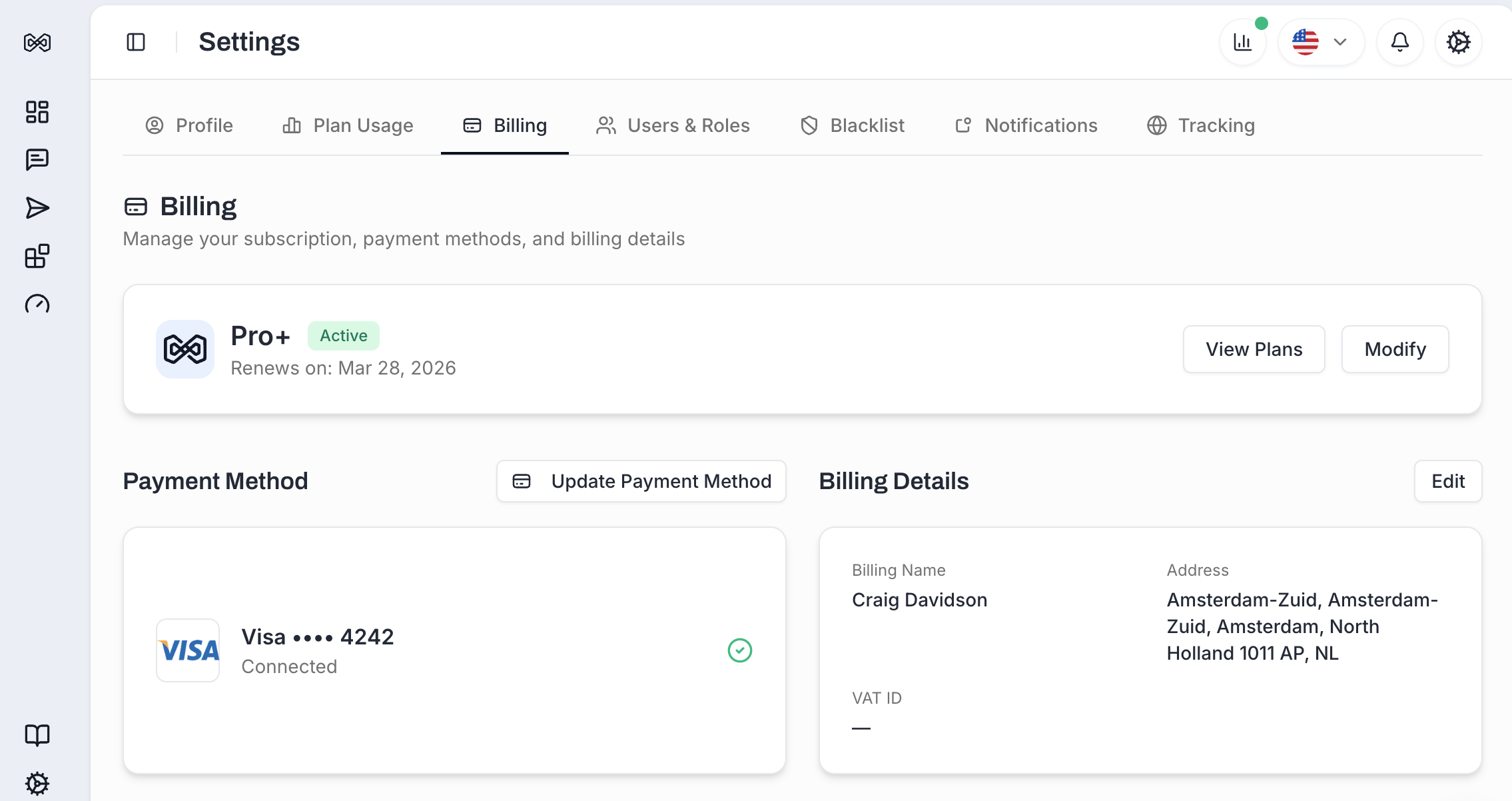
Go to Settings > Billing tab.
Scroll down to the Invoices section.
Each invoice is issued for the details that you specify during initial subscription purchase.
Click the Download button on any invoice row to save a PDF copy. This PDF includes all billing details and is suitable for expense reports and accounting records.
Billing details appear on your invoices. Update them to reflect your company's legal name and address.
Go to Settings > Billing tab.
Find the Billing Details card on the right side.
Click Edit.
Fill in or update the fields:
Billing Name - Your name or company legal name
Address - Street address
City, State/Province, Postal Code
Country - Select from the dropdown
VAT ID (optional) - Your company's VAT identification number for tax purposes (useful if you act as a company and want to save on taxes).
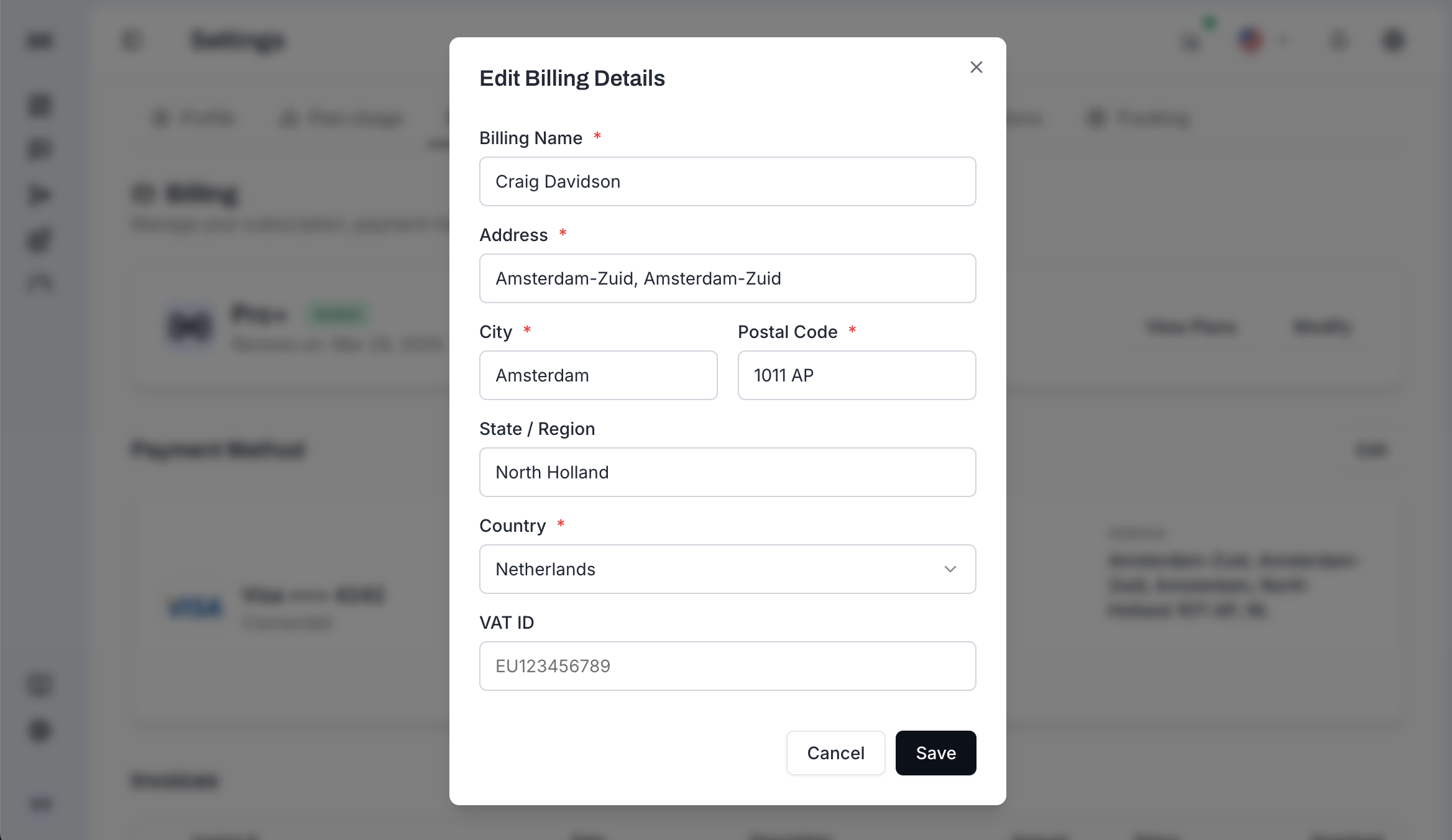
Click Save.
Updated billing details will appear on all future invoices. Existing invoices are not retroactively updated through our panel.

Tip: If you need a past invoice reissued with different billing details, contact our billing provider - Dodo Payments.
Status | Meaning |
|---|---|
Paid | Payment was successfully processed |
Pending | Payment is being processed or awaiting confirmation |
Failed | Payment attempt was unsuccessful - update your payment method |
Refunded | The charge was refunded to your original payment method |
MailBeast calculates applicable taxes based on your billing country and address.
If you provide a valid VAT ID, it may exempt you from certain taxes depending on your jurisdiction.
Tax amounts are shown as a separate line item on each invoice.
All invoices are generated automatically. If an invoice is missing:
Check that you are viewing the correct workspace (if you have access to multiple).
Recently processed payments may take a few minutes to generate an invoice.
Contact MailBeast Support if the invoice still does not appear after 24 hours.
Updating billing details only affects future invoices. For corrections to past invoices, contact support through the in-app chat and provide the invoice number.
Tax is calculated based on the country and address in your billing details. If these are incorrect, update them in the Billing Details section. The corrected tax will apply to your next invoice.

