MailBeast provides detailed warmup analytics at both the organization level and per-account level. This guide covers how to access, read, and act on your warmup performance data.
Go to Analytics in the sidebar, then click the Warmup Analytics tab. This view shows aggregate warmup performance across all accounts in your organization.
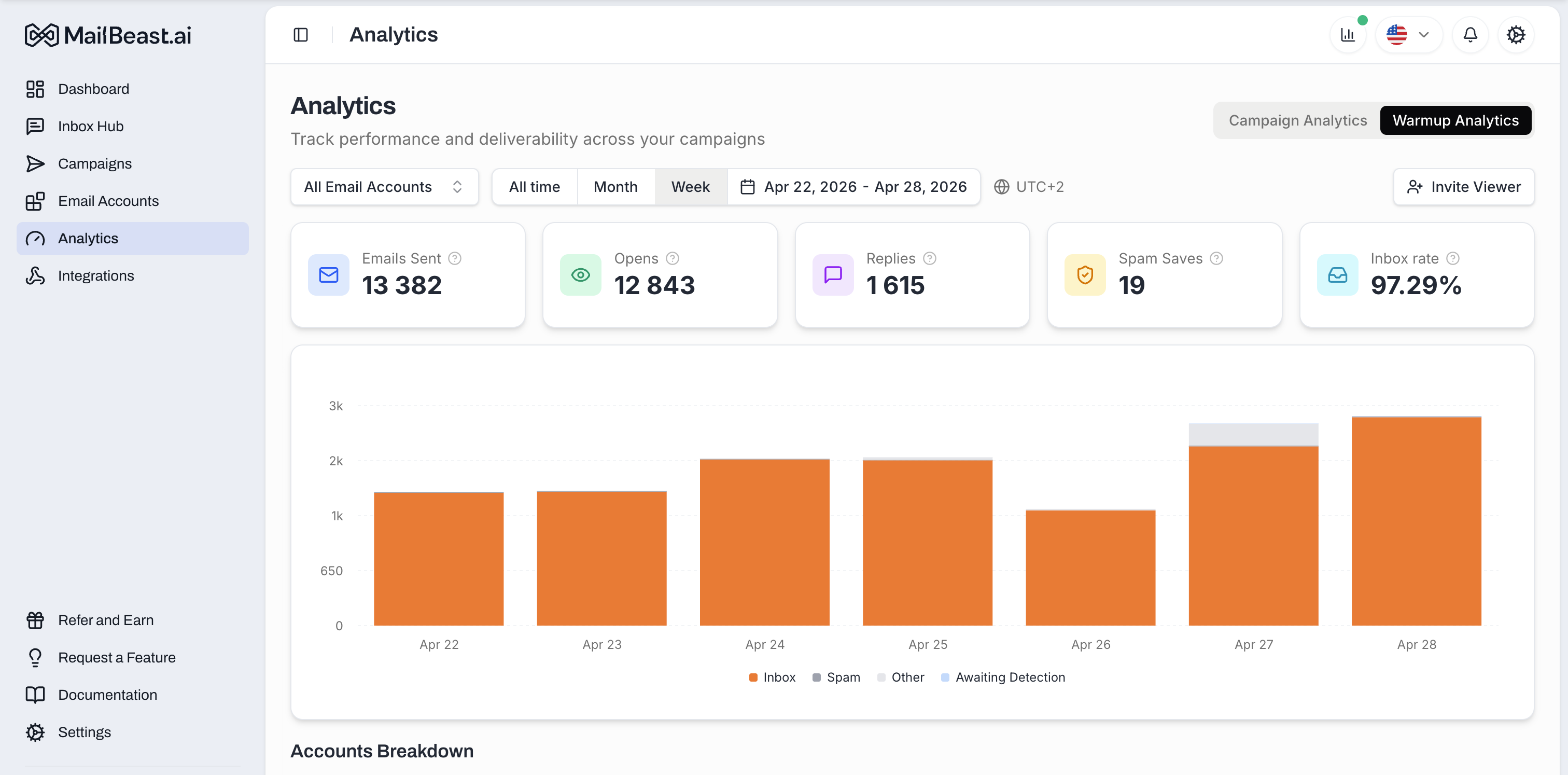
The picker at the top of the page lets you narrow analytics to one account or keep the view across all of them:
All accounts - aggregate view across your entire organization.
Specific account - search by email address and pick one.
Use this to compare accounts side-by-side or zoom into one account when you're investigating a problem.
Filter the time range for all charts and metrics:
Period | What It Shows |
|---|---|
All time | Complete warmup history since the account was first warmed up |
Last 7 days | Past week - useful for recent trend analysis |
Last 14 days | Covers one full warmup cycle |
Last 28 days | Monthly view - good for stable-state monitoring |
Custom range | Pick specific start and end dates |
The main chart on the page shows, day by day, how many warmup emails landed in the inbox versus the spam folder.
Each bar is one day, with four possible segments stacked together:
Orange - landed in inbox. The big segment you want to see.
Gray - landed in spam.
Light gray - other folders (promotions, trash, etc.).
Light blue - awaiting detection. Engagement signal hasn't come back yet.
The full height of a bar = total warmup volume sent that day.
Early days (1-5): mixed orange and gray. Some gray is expected and normal.
Middle days (6-10): orange growing, gray shrinking. The trend matters more than any single day.
Late days (11-14): mostly orange. Gray should be small.
After Day 14 (Active badge): steady orange bars day after day. Occasional small gray bars are acceptable.
Above the chart, a row of five tiles shows the headline numbers for the selected period:
Tile | What It Shows |
|---|---|
Emails Sent | Total warmup emails sent in the period. |
Opens | How many warmup emails the seed accounts opened. |
Replies | How many warmup emails got a reply from a seed (replies are a strong positive engagement signal). |
Spam Saves | How many emails the seed accounts pulled out of spam back into the inbox. |
Inbox rate | Share of warmup emails that landed in inbox, as a percentage. |
The Inbox rate is the single number to watch. During the Day 1-14 ramp it should be climbing; once the badge is Active it should stay consistently high (80%+ is healthy).
Inbox rate climbing over the first 14 days, then holding 80%+.
Gray (spam) portion shrinking and staying small.
Consistent daily volume - no missing-bar days.
Replies tile keeps growing day over day - means the seed pool is engaging.
Spam Saves keeps registering low non-zero numbers - it's working, less and less needs to be saved as your reputation builds.
Warning Sign | Possible Cause | Action |
|---|---|---|
Inbox rate flat or sliding after Day 7 | DNS issues, blacklisting | Check DNS records and blacklist status |
Sudden spike in the gray (spam) segment | New blacklisting, DNS record change | Recheck blacklists, verify DNS |
Zero sends for multiple days | Connection lost, warmup auto-paused (badge | Check account connection and warmup status |
Inbox rate declining after Day 14 (badge | Reputation decay, increased campaign bounce rates | Review campaign lead quality and sending patterns |
Use warmup analytics to determine when an account is ready for campaigns:
Inbox rate should be 80%+ consistently for at least 3-5 days.
Gray (spam) portion of the bars should be small relative to orange (inbox).
The account should have completed the 14-day ramp (badge has flipped to Active).
The trend over the last week should be flat or rising, not falling.
Use the "All accounts" view to identify:
Accounts that are underperforming relative to others (may need DNS fixes or strategy changes)
Accounts that are outperforming (good candidates for increased campaign volume)
Patterns across accounts on the same domain (domain-level reputation issues)
The overall health of your accounts warmup
Warmup Phases Explained - Understand what each phase means for your analytics
Blacklist Monitoring - Investigate blacklisting as a cause of poor analytics

