Leads are the people your campaign will reach. Before a campaign can send a single email, the Leads tab needs to be populated. Leads is the first thing to set up after creating a campaign - your custom CSV columns become the variables your sequences can use, and previewing emails against real lead data is only possible once leads are imported.
There are three ways to add leads, depending on how many you have and where the data lives.
Best for bulk-importing lead lists from spreadsheets, CRMs, or lead-generation tools. Handles hundreds or thousands of leads at once with automatic duplicate detection.
Format: .csv with comma separation.
Encoding: UTF-8 (required for accented names or non-Latin scripts). In Excel: File > Save As > CSV UTF-8 (Comma delimited).
First row: column headers - MailBeast uses these to suggest field mappings.
Required column: an email column (the only one that's strictly required).
Recommended columns: first name, last name, company name - so you can personalize with {{first_name}}, {{last_name}}, {{company_name}} in your sequence.
Anything else becomes a custom variable - any extra CSV column maps to {{custom_<column>}} in your templates.
Sample file: Download our sample CSV - the same one the Import CSV dialog offers. Open it in your spreadsheet, replace the rows with your data, and you're ready to upload.
In your campaign, open the Leads tab and click Bulk Import.
Choose Import from File.
Upload your file - drag and drop, or click to browse. CSV and Excel files are both accepted.
Map columns - MailBeast reads your headers and suggests how each maps to a MailBeast field. The dropdown options include the standard fields (email, firstName, lastName, companyName, website, linkedinProfile, location, tags) plus Custom Variable for anything else. Pick Skip to ignore a column.
Preview - sample rows let you verify the mapping before committing.
Import settings:
Duplicate handling: skip (default), update existing, or create new entries.
Remove duplicates within CSV: dedupe rows in the uploaded file itself.
Import blocked emails: whether to import emails that are on your organization's blocklist.
Click Import. The import runs in the background; you can navigate away.
You'll see a summary:
Successful - leads imported and ready.
Failed - rows rejected (invalid email, missing required fields).
Duplicate - emails that already existed in this campaign (skipped).
Skipped - excluded for other reasons (blocked emails, empty rows).
Successful leads appear in the Leads tab with Not Contacted status.
"0 successful rows": check that your CSV has a header row, the email column is mapped, and the file actually uses commas (not semicolons or tabs).
Garbled names with accents: re-export as UTF-8 (File > Save As > CSV UTF-8 in Excel).
"Invalid email" on rows that look fine: check for invisible whitespace before/after the address - some CRM exports pad fields with spaces.
Import seems stuck: large imports (10k+ rows) take a few minutes. If it stalls beyond 5 minutes, refresh - it likely already finished and the leads table just needs a reload.
Best when you have a plain list of email addresses (no names, no companies) and you just want them in fast - copied from a spreadsheet column, an old export, or an email thread.
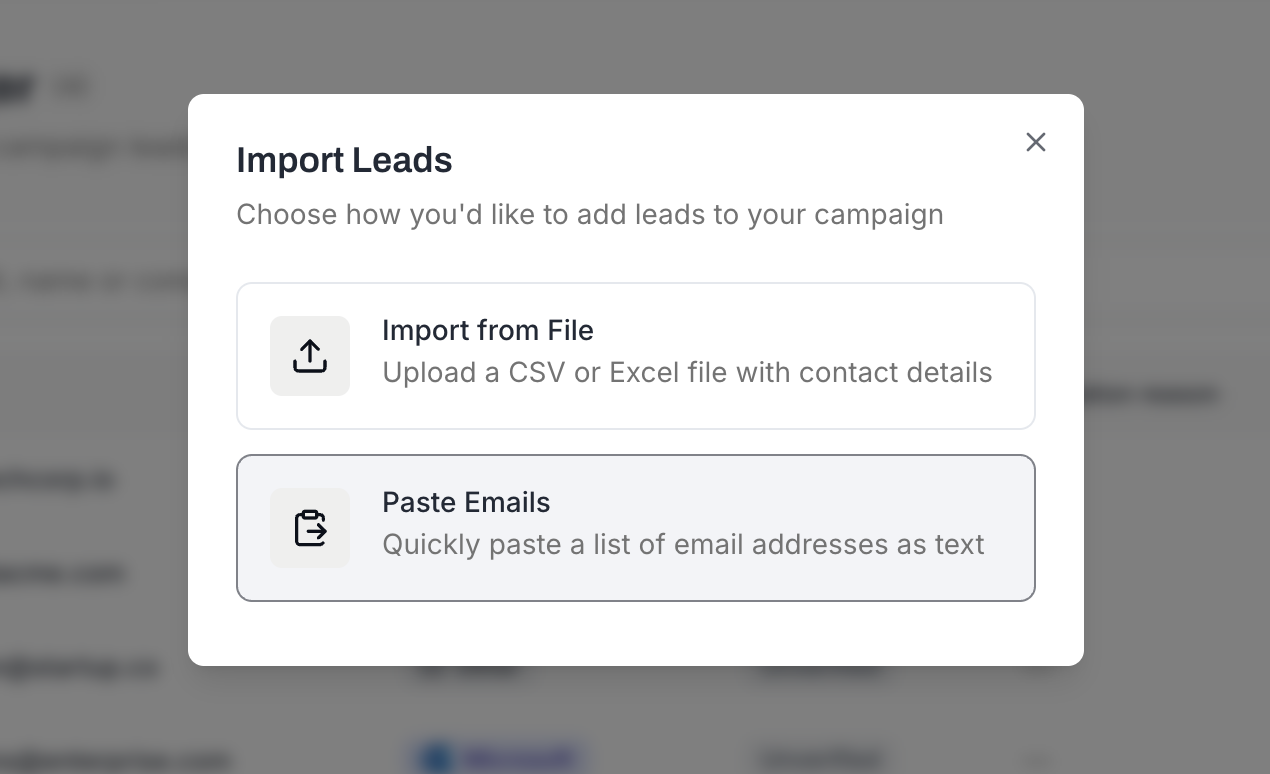
In the Leads tab, click Bulk Import.
Choose Paste Emails.
Paste your addresses into the text box - one per line, or separated by commas, semicolons, or tabs. Up to 1,000 addresses per paste.
Click Import.
Leads are created with the email address only. No names or company names - those will appear blank in your sequence variables, so this method is best for lists you'll enrich later or campaigns that don't rely on personalization fields.
Best for adding individual leads quickly - a hot prospect, a referral, or a handful of test contacts.
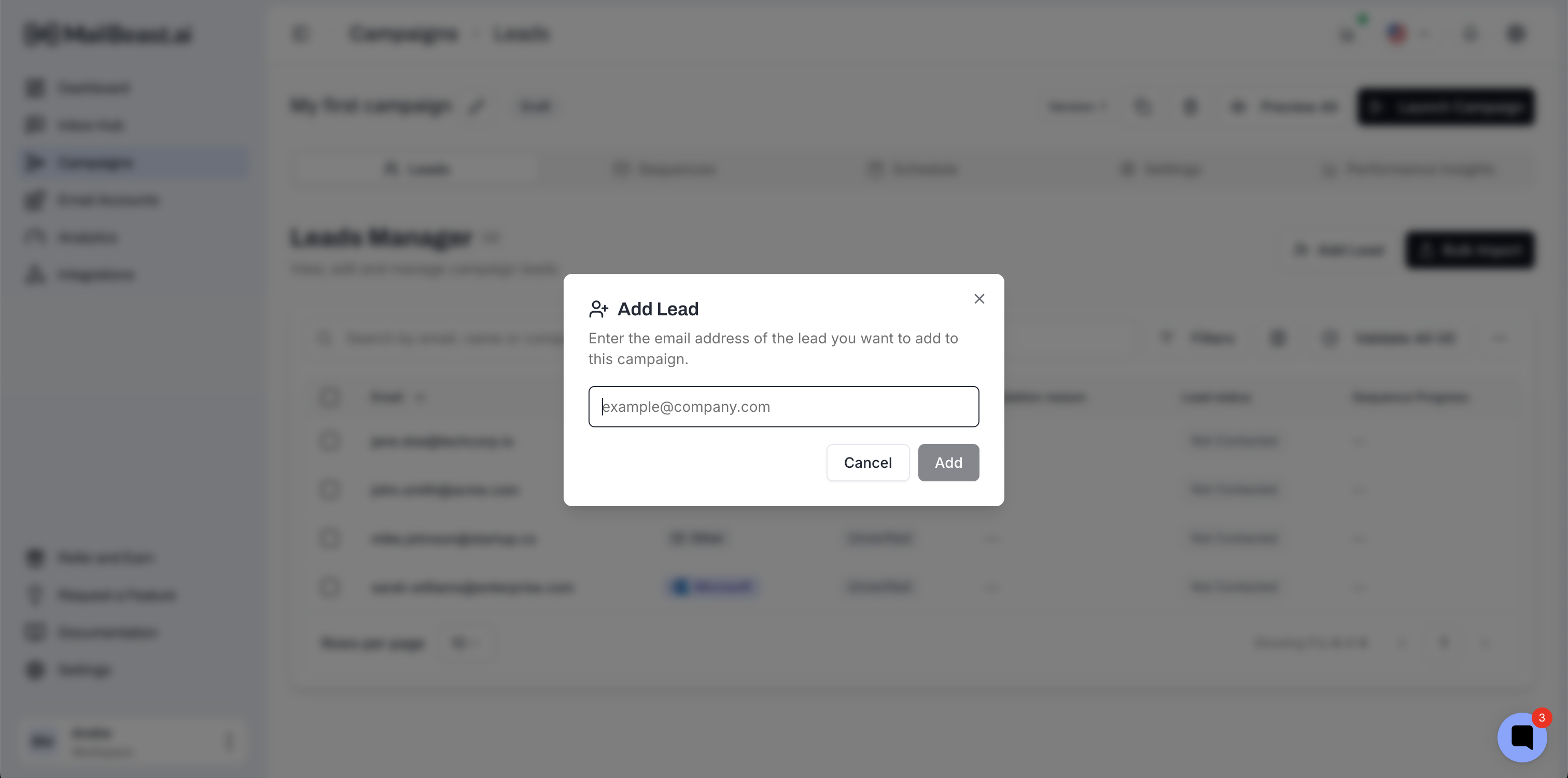
In the Leads tab, click Add Lead.
Fill in the lead details (Email is the only field; first name).
Click Save.
The lead appears immediately with Not Contacted status.
Leads are scoped to the campaign they live in:
The same person can be a lead in several campaigns at the same time, and each campaign tracks them independently - status, sent count, replies, and sequence progress are per-campaign.
Changing a lead's status in one campaign doesn't affect the same person in another.
The same email can't appear twice in the same campaign - duplicates are caught automatically on import.
Clean your CSV before importing. Drop empty rows, fix obvious formatting issues, confirm the email column actually contains email addresses.
Keep custom field names simple. Use a column header like industry or recent funding, not Industry/Vertical (current) or Recent funding announcement. Short, lower-case headers slug cleanly into {{custom_industry}} / {{custom_recent_funding}} variables; long headers turn into long, ugly variable names.
Use the same column names across CSVs. If your job-title column is always called the same thing, every campaign template that references it works without remapping.
Verify after import. A purchased list or scraped CSV will have stale addresses. Run Email Verification before launching.
Watch your plan limits. If your contacts limit is exceeded mid-import, the import partially completes up to the limit.
Lead Statuses Explained - what each status means and how the lifecycle works.
Managing Leads - search, filter, and bulk-edit your imported list.
Email Verification - clean the list before sending.
Using Variables - reference the data you just imported in email templates.

