Once your leads are imported, you need tools to find specific leads, segment them, and take action at scale. The Leads tab in your campaign gives you search, filters, sorting, bulk actions, and export - everything you need to manage your list efficiently.

Where do good leads come from? The quality of your campaign starts long before you press Launch - it starts with the list. We recommend two tools for sourcing and enriching leads before you bring them into MailBeast: - Apollo.io - the easiest place to start. A large B2B database where you can filter by job title, industry, headcount, geography, tech stack and many other attributes, then export a CSV of the results. - Clay - takes a list (from Apollo, LinkedIn, your CRM, or anywhere else) and enriches it: recent funding/news, hiring signals, custom AI columns - everything that makes personalization actually work. A common workflow is Apollo to find the right people, Clay to enrich and clean the list, MailBeast to send and track. Whichever tools you use, export to CSV and import here following Adding Leads to a Campaign.
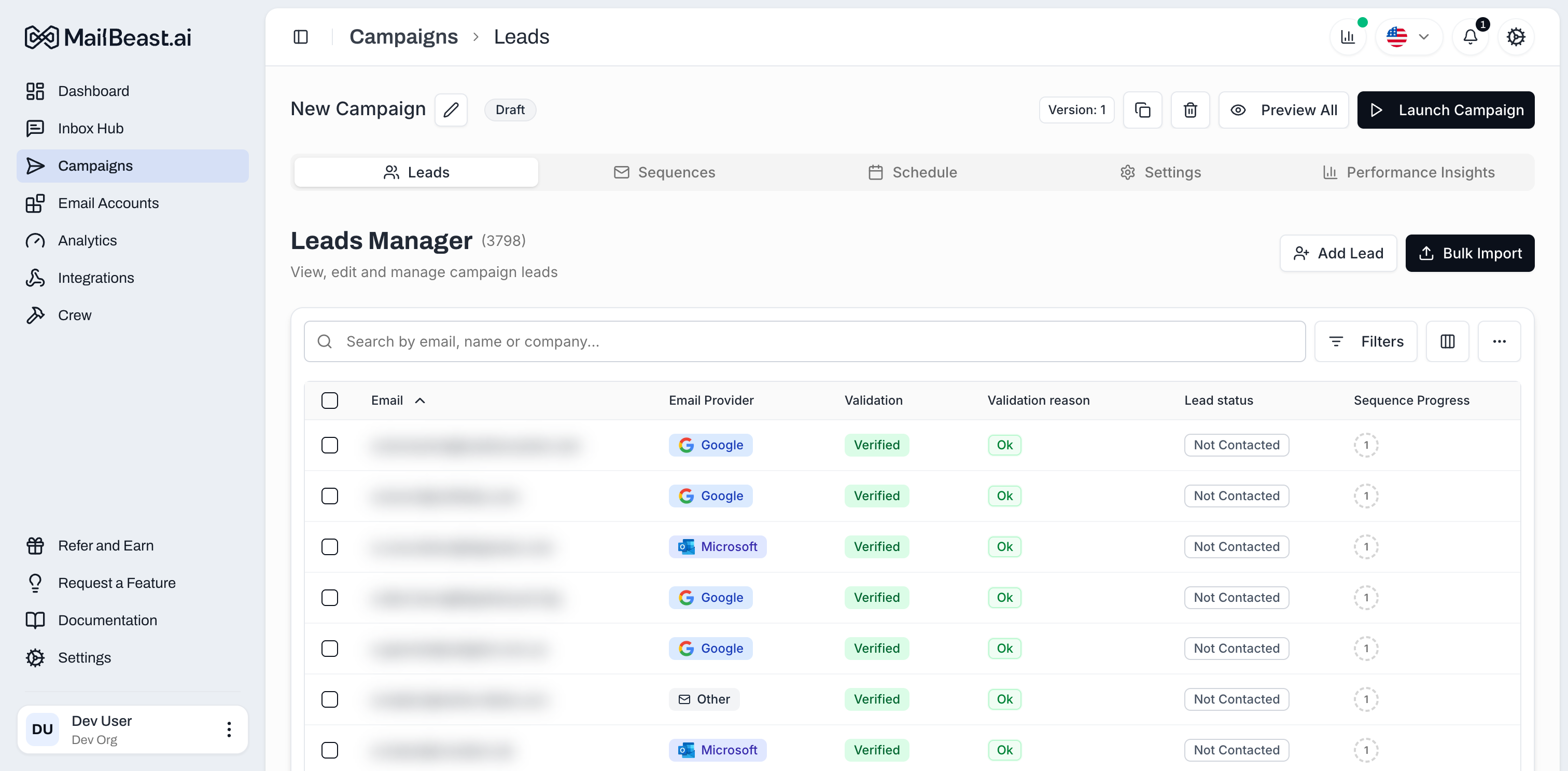
The search bar at the top of the Leads tab lets you find leads quickly.
What it searches: Email address, first name, last name, and company name.
How it works: Results update as you type - no need to press Enter.
Use case: Quickly find a specific lead by name or email to check their status, edit their details, or review their activity.
Click Filters in the toolbar to open the filter panel. You can combine multiple filters for precise targeting - they're additive (e.g. Status: Interested + Email Provider: Google shows only leads who replied with interest from Gmail addresses).
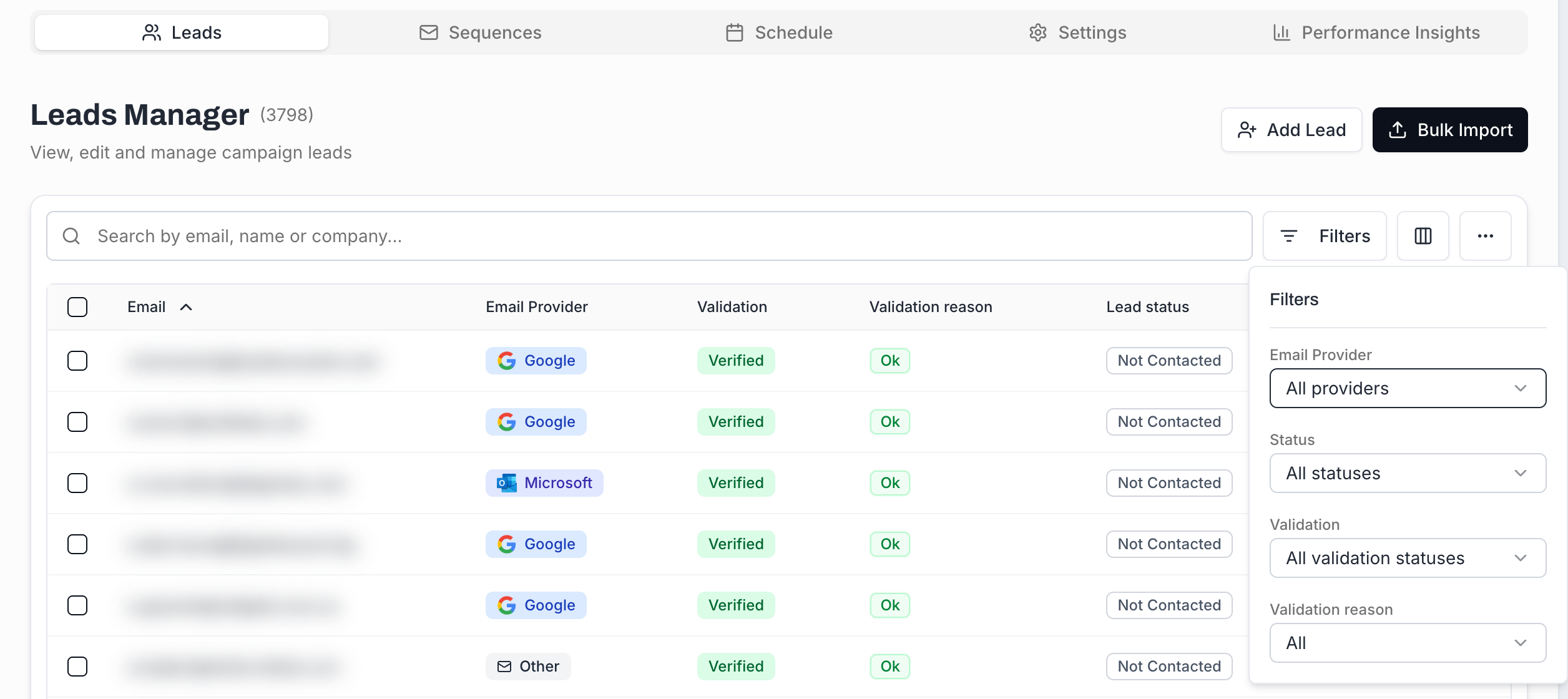
Available filters:
Filter | Options |
|---|---|
Email Provider | Google, Microsoft, Zoho, Other (detected automatically from the email domain) |
Status | Every lead status - Not Contacted, Scheduled, Email Sent, Failed, Skipped, the reply categories, Converted, Lost, Blacklisted, Unsubscribed (see Lead Statuses Explained) |
Validation | Valid, Invalid, Risky, Unknown, Not Verified |
Validation reason | Sub-reason that explains a Risky / Invalid result (role address, accept-all, disposable, full inbox, etc.) - useful for cleaning lists before launch |
Click any column header in the leads table to sort by that field.
Sortable columns:
First name
Last name
Company name
Lead status
Email provider
Verification status
Created date
Click once to sort ascending, click again to sort descending.
Select leads with the checkboxes, then open the ⋯ (overflow) menu in the toolbar to act on them.
The overflow menu offers two bulk actions:
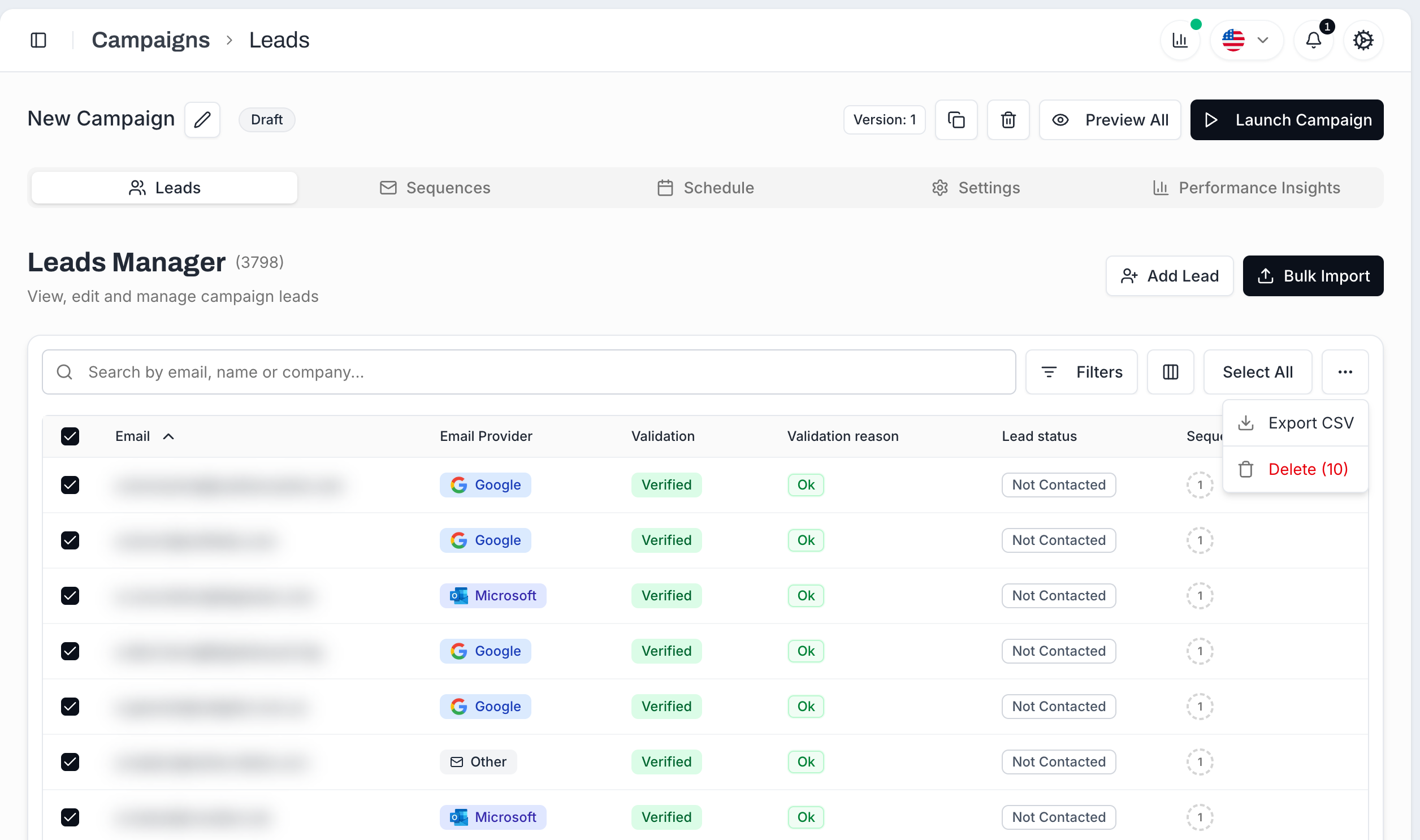
Export CSV - download the selected leads as a CSV (also available without a selection - exports everything matching your current filters).
Delete - remove leads from the campaign. Only leads with status Not Contacted or Scheduled can actually be deleted; once a lead has been emailed it's kept for compliance and analytics. Anything in your selection that's already been contacted is reported as skipped in the deletion count.
Click any row in the table to open the Edit Lead panel:
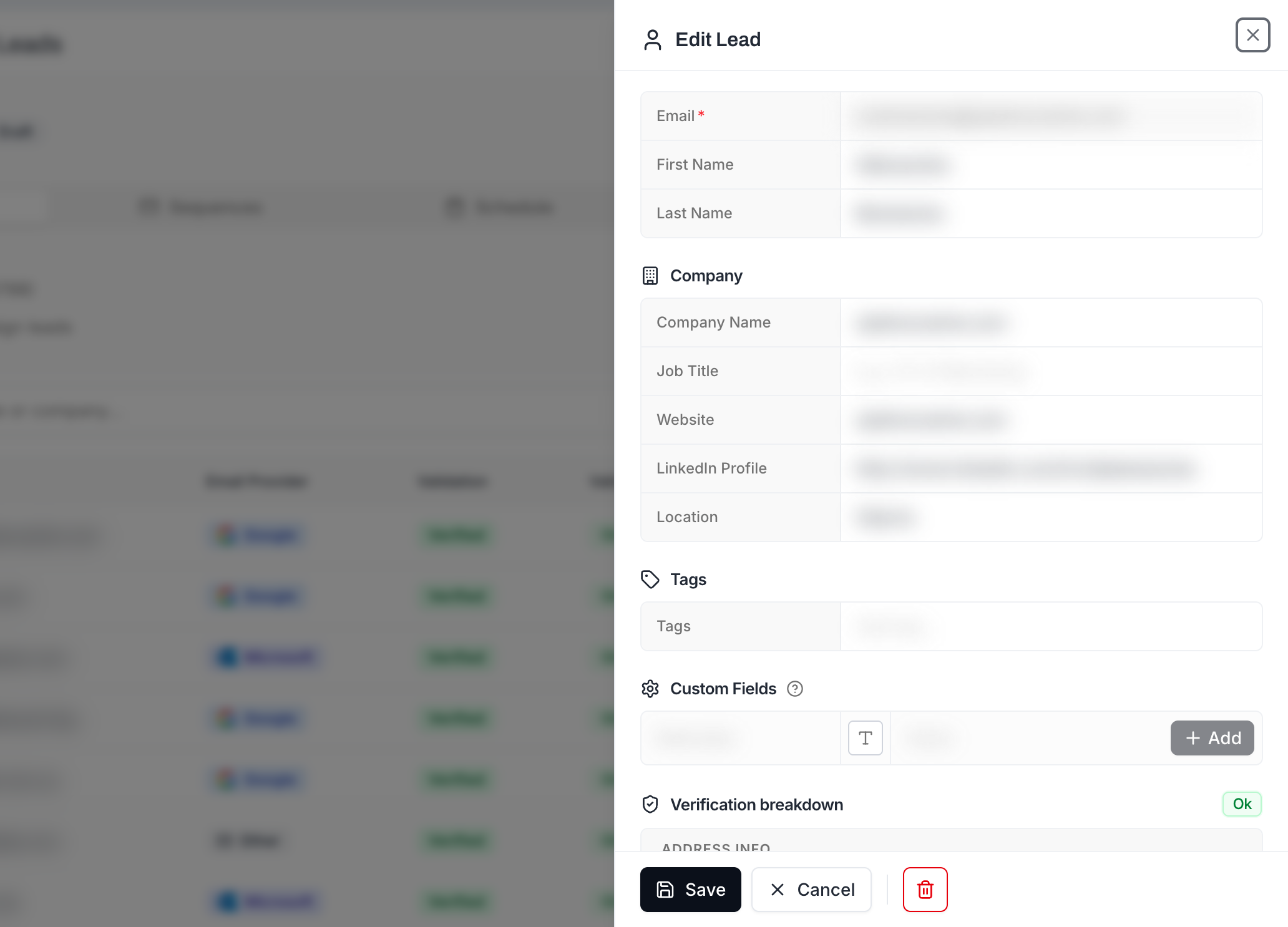
From this panel you can:
Edit contact fields - first name, last name, company name, job title, website, LinkedIn profile, location, and any custom fields you imported.
Manage tags - add a new tag or remove one from this lead.
Add custom fields - any extra {{variableName}} you want available for this lead in your sequence templates.
See verification details - the Verification breakdown section shows the address, domain and processing checks behind the lead's Validation status.
Delete the lead - the trash icon at the bottom (only available for leads that haven't been emailed yet).
The lead's status is not edited from this panel - statuses are either set automatically by the campaign engine or, for replies, recategorized from InboxHub. See Lead Statuses Explained for the full picture.
Tags are a flexible way to segment and organize leads beyond the standard filters.
Ideas for tagging:
Tag | Purpose |
|---|---|
| Leads you want to respond to first |
| Contacts with purchasing authority |
| Leads that need a manual follow-up outside the sequence |
| Leads that came from a referral |
| Leads from a specific event |
How to add tags:
During import: Include a tags column in your CSV (comma-separated values within the cell).
Manually: Open a lead and add tags in the Tags field of the Edit Lead panel.
A clean, well-prepared list is the single biggest deliverability lever you have. Here's the end-to-end workflow we recommend, from finding leads to pressing Launch:
Source with Apollo.io. Filter by your ICP - job title, industry, headcount, geography, tech stack - and export the matching contacts as a CSV.
Enrich with Clay. Hit Apollo's CSV (or any list - LinkedIn, your CRM, scraped pages) with extra signals: recent funding, hiring activity, custom AI-generated columns. The richer the lead data, the more there is to personalize on inside your sequence.
Import into MailBeast. Bring the enriched CSV into your campaign and map any custom column to a Custom Variable so it's available as {{variableName}} in your emails. See Adding Leads to a Campaign for the full import flow.
Validate your emails. This is very important for any list that you bring to MailBeast. Helps you to reduce bounces and prolongates lifetime of your mailboxes.
Clean. Filter the list by Validation: Invalid (and, if you want to be strict, Risky), bulk-delete those leads, and you're left with addresses that are actually deliverable.
Tag and segment anything you'll want to filter on later (high-priority, decision-maker, referral, etc.).
Done! Your list is now accurate, enriched, and verified - the foundation of every campaign metric you'll see afterwards.
Next: Email Verification for Leads - how MailBeast runs verification, what each result means (Valid / Invalid / Risky / Unknown), and how to read the Validation reason to understand why a lead came back the way it did.

