Verifying email addresses inside MailBeast before launch is one of the highest-leverage things you can do for deliverability. This guide explains why it matters, what each result means, how to run verification, and what to do with the results.
Even when a list comes from a "verified" source (Apollo, Clay, your CRM, an export from a tool you trust), addresses go stale fast. People change jobs, mailboxes get disabled, domains lapse, catch-all rules change. The window between "the list is verified" and "you press Launch" is exactly when bounces creep in - and bounces hit your sender reputation immediately.
Why bounce rate matters:
Above 2% - Gmail, Outlook and other ESPs start throttling and routing your mail to spam.
Above 5% - serious sender-reputation damage. Recovery in some cases can take months or end up being impossible.
Repeated high bounces - your provider may suspend the mailbox.
Running validation on the leads tab right before launch catches this drift on your infrastructure, with the address list you're actually about to send to. That's the only step that matters for the bounce rate of your campaign.
Open your campaign and go to the Leads tab. The toolbar shows a Validate All (N) button - where N is the number of leads in the campaign that haven't been validated yet.
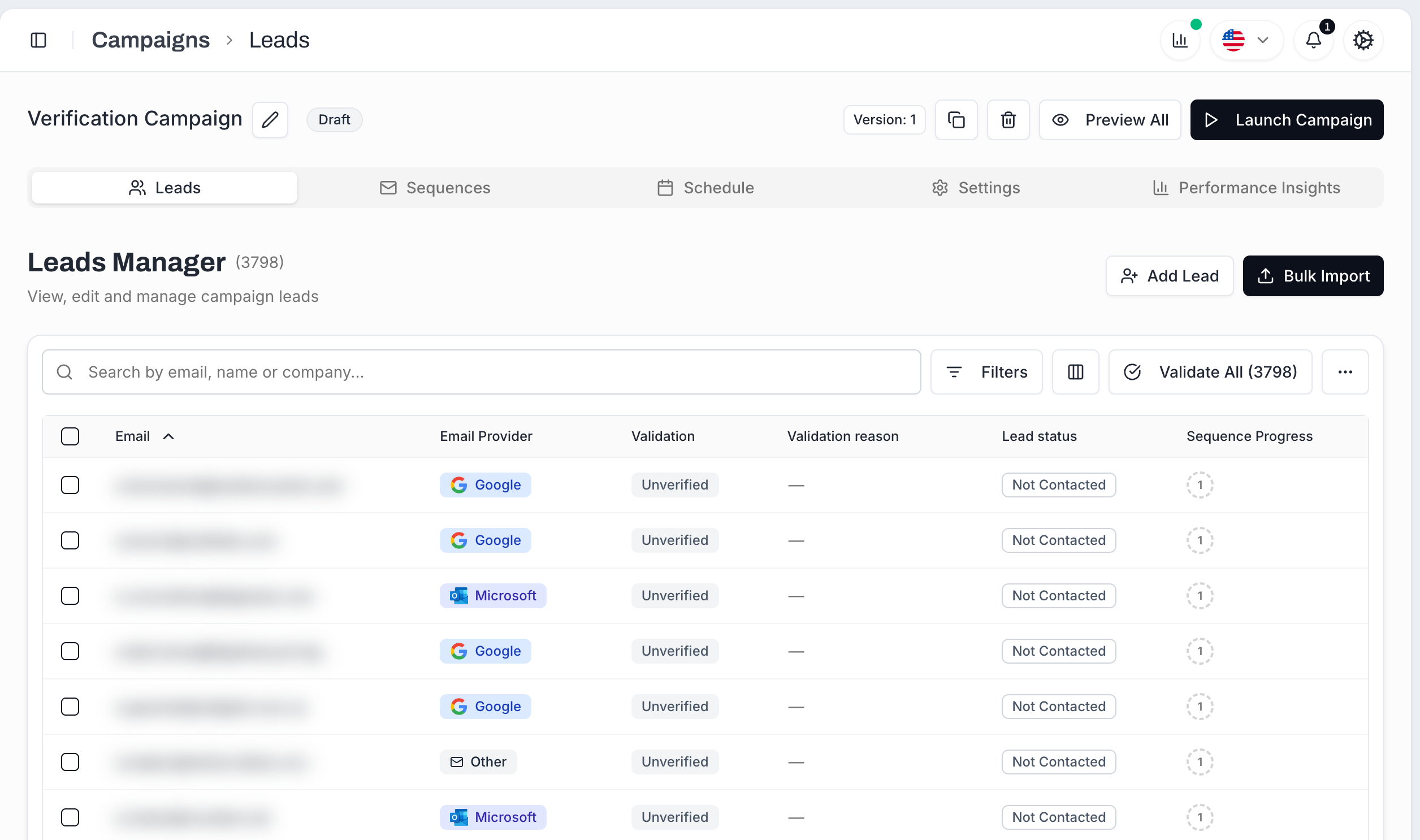
Until you press it, every lead shows Unverified in the Validation column with no Validation reason filled in.
Click Validate All (N) and a confirmation dialog appears.
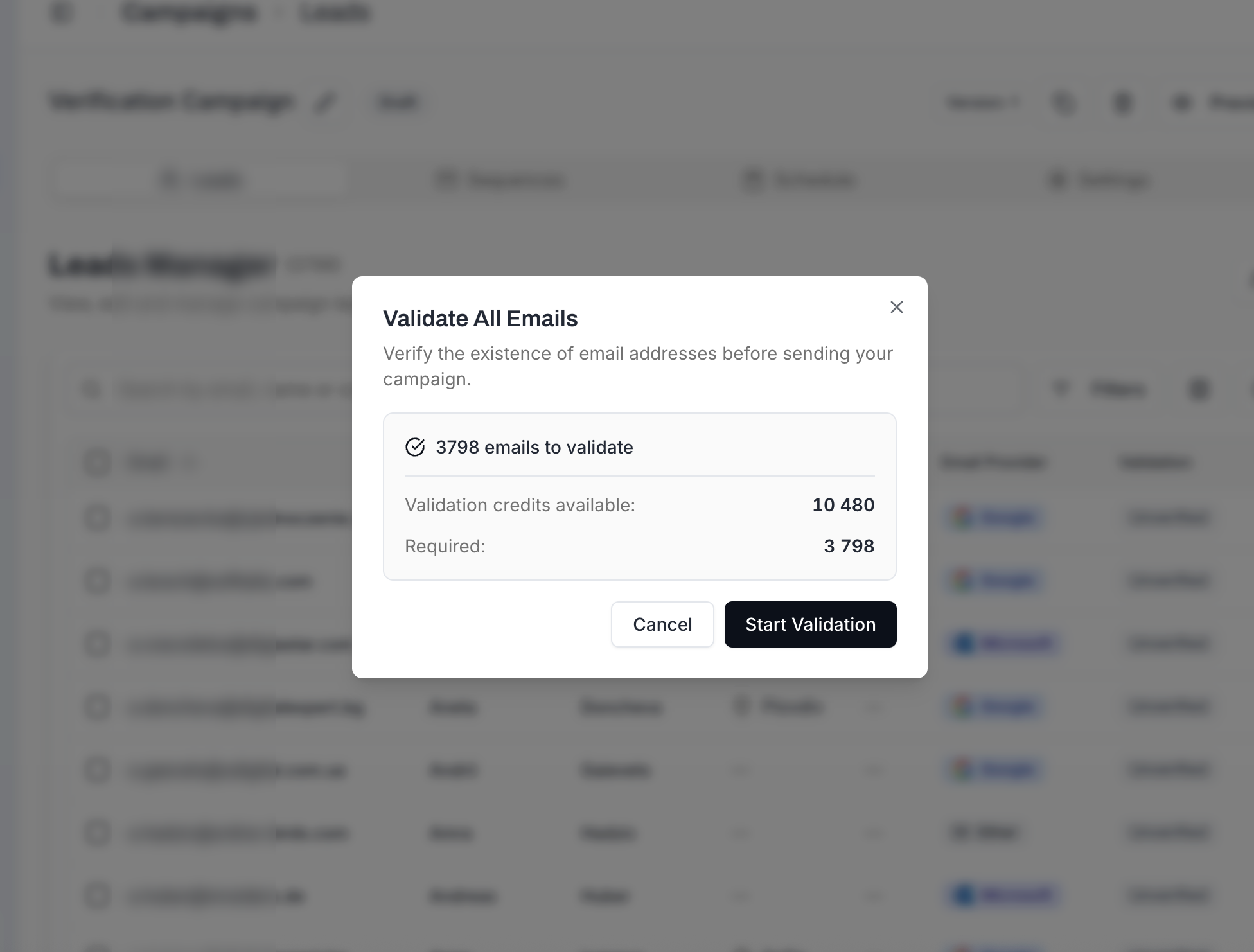
The dialog tells you exactly what you're committing to:
N emails to validate - the count of unverified leads in this campaign.
Validation credits available - the balance on your plan.
Required - one credit per email address (always 1 : 1).
Click Start Validation to begin. Validation runs in the background - you can navigate away and come back. As results come in, the Validation column fills with badges and the Validation reason column fills with the specific sub-reason.
If you only want to check some leads (e.g. a freshly imported batch), select them with the row checkboxes first - the Validate All button switches to Validate (N selected). Same dialog, same 1-credit-per-email cost, scoped to your selection.
Every validated lead lands in one of these states. The Validation column shows the high-level verdict; the Validation reason column tells you why.
Validation | What it means | What you should do |
|---|---|---|
Verified (green) | The mailbox exists and accepts mail. | Safe to send. |
Risky (orange/yellow) | The address might work, but something's off - usually catch-all domains, role inboxes ( | Judgment call - see below. |
Invalid (red) | The mailbox does not exist or the domain is dead. | Do not send. The lead is automatically marked Skipped so the campaign won't email it. |
Unknown (gray) | Mailing server refused to give a definitive answer despite multiple attempts. | Skipped automatically by default (see the Settings checkbox below). Re-validating won't change the verdict. |
Unverified | Hasn't been validated yet. | Run validation. |
You don't have to manually clean unwanted categories out of the leads tab - the campaign decides which validation results to send to and which to skip. The control lives in Campaign Settings → Safety → Skip leads by verification status as three checkboxes:

Checkbox | Default | What it does when checked |
|---|---|---|
Invalid | On | Every Invalid lead is auto-skipped. Lead Status flips to Skipped at planning time and the campaign never tries to send to them. |
Unknown | On | Same treatment for leads that came back Unknown after multiple verification attempts. |
Risky | Off | Off by default - Risky leads stay active and the campaign sends to them. Turn this on to auto-skip the entire Risky bucket. |
What we recommend: leave Invalid and Unknown on (the defaults), and turn Risky on unless you're explicitly running an aggressive campaign (see below). One click and the campaign will follow the same "don't send to Risky" rule we lay out further down, without you having to filter and bulk-delete by hand.
With Skip Invalid on (default), Invalid leads never make it into the send queue. Their Lead Status flips to Skipped, the Validation reason tells you exactly why (e.g. Mailbox not found), and they're effectively quarantined - kept on the list for the record, but ignored by the campaign engine.
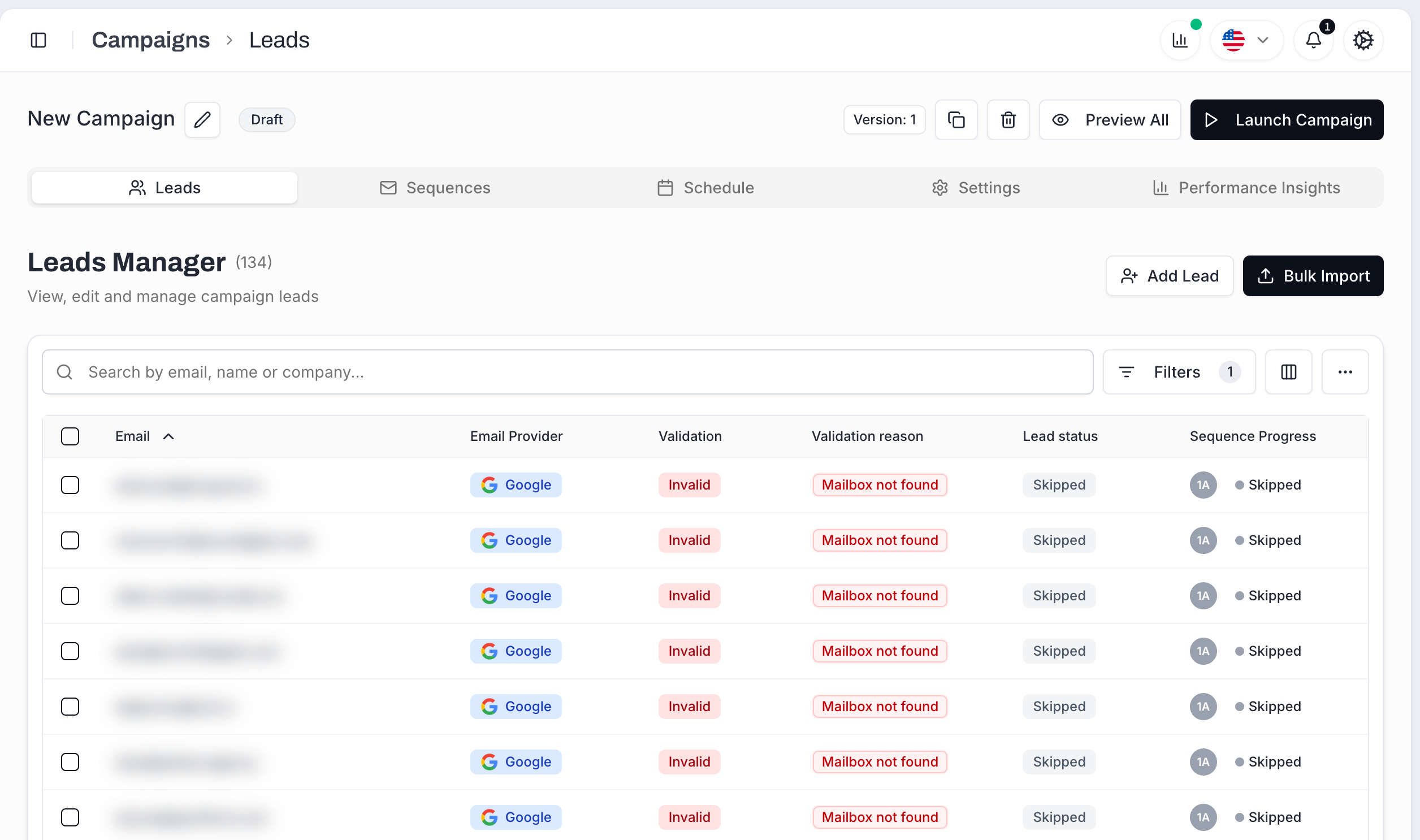
If you ever turn Skip Invalid off, those same leads will be picked up by the next planning cycle and emailed - which is almost always the wrong call. Keep this on.
Our general advice: don't send to Risky leads. Each one carries some probability of bouncing or hitting a low-engagement inbox, and on a clean campaign that's extra bounce rate you don't want to add. The simplest way to enforce this is to turn on Skip Risky in Campaign Settings before launch - one click, no filter-and-delete dance.
The exception is aggressive senders - high-volume outbound, multiple sending mailboxes, lists where every additional contactable address is worth more than the marginal bounce risk. If that's you, leave Skip Risky off, monitor bounces closely in the first hours of the campaign, and pull back if the rate starts climbing.
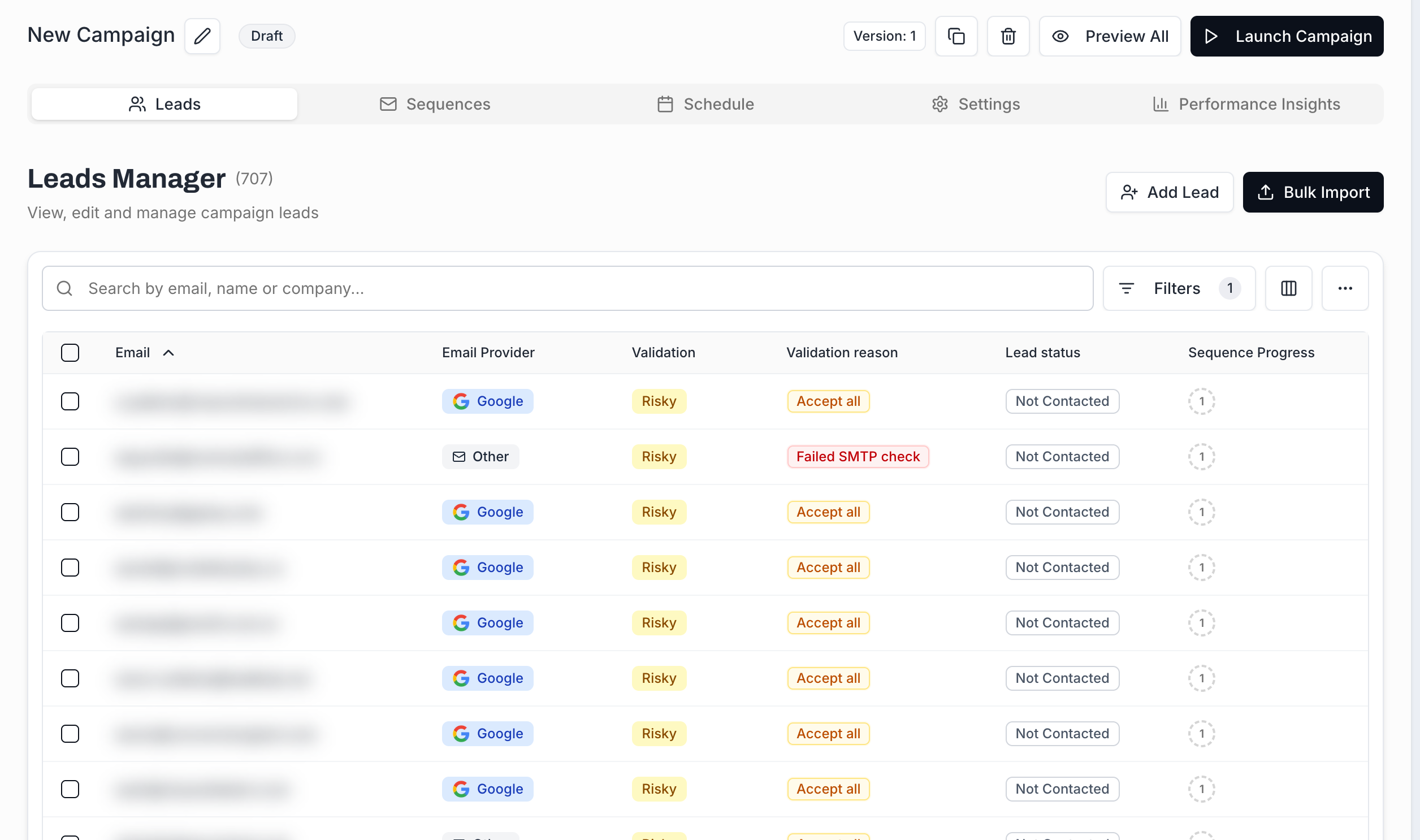
If you do decide to keep Risky leads, the Validation reason is what tells you which sub-categories are riskier than others:
Accept all - the domain accepts everything. The mailbox might exist or might not. Common with company catch-all domains - the safest of the Risky categories.
Failed SMTP check - the receiving server didn't complete the conversation cleanly. Could be a temporary block or an actual problem. Treat as Unknown.
Role address (info@, support@, sales@) - shared inboxes; low engagement and higher complaint risk.
Disposable - temporary email service. Remove unconditionally.
Full inbox - the mailbox exists but is over quota. Will bounce until cleared.
Greylisted - server is asking for retries. Often resolves itself; sometimes worth re-validating later.
If you'd rather strip just one Risky sub-category instead of all of them, leave Skip Risky off, filter the leads tab by Validation: Risky + Validation reason: <category>, and bulk-delete the result.
Hover the Validation badge on any lead to open the breakdown card. It shows every check the validator ran - Address, Domain, and Processing - with a check mark or a flag for each.
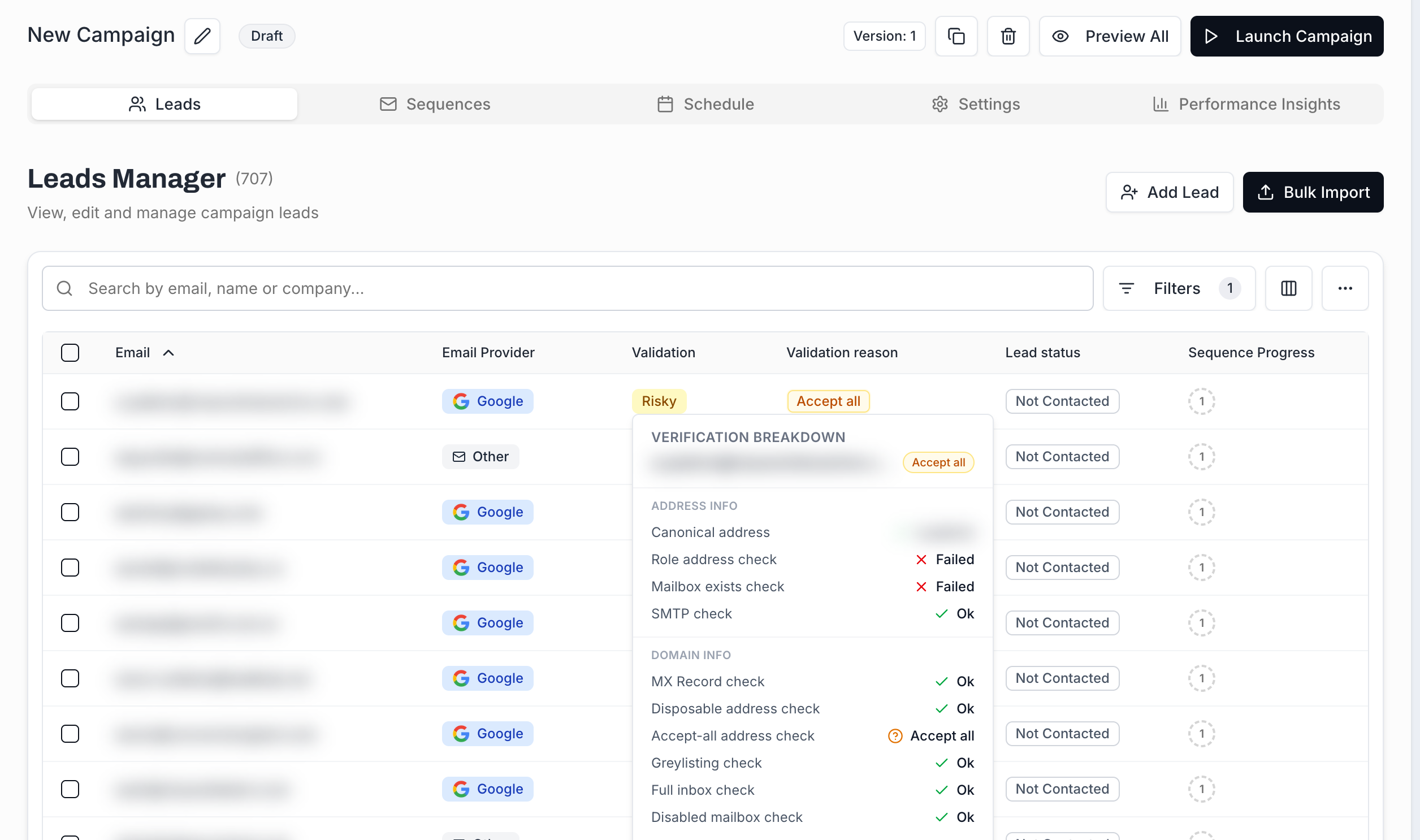
ADDRESS INFO
Canonical address - the normalized local part (e.g. plus-aliases stripped).
Role address check - is this a shared inbox (info@, etc.)?
Mailbox exists check - does this exact mailbox exist on the server?
SMTP check - did the SMTP conversation complete cleanly?
DOMAIN INFO
MX Record check - does the domain accept mail at all?
Disposable address check - is this a known throwaway-mail service?
Accept-all address check - does the domain accept everything (catch-all)?
Greylisting check - did the server ask for a retry?
Full inbox check - is the mailbox over quota?
Disabled mailbox check - has the mailbox been deactivated?
PROCESSING INFO
Last verified at - when this lead was last checked. Lets you see whether a result is fresh or worth re-running.
This is the same breakdown that drives the top-line Validation verdict - useful when a result looks ambiguous and you want to understand which specific check tripped it.
The Filters panel in the leads toolbar exposes both axes:
Validation - Verified / Risky / Invalid / Unknown / Unreachable / Pending / Not Validated.
Validation reason - the sub-reason behind a Risky or Invalid verdict (Accept all, Mailbox not found, Failed SMTP check, Disposable address, Full inbox, etc.).
Combining them is how you do targeted clean-up. A few common moves:
Validation: Risky + Validation reason: Disposable → bulk-delete throwaway-email leads.
Validation: Invalid → already auto-skipped, but you can bulk-delete to keep the table tidy.
Validation: Unknown → decide whether to keep them or strip them before launch.
Always run validation before pressing Launch, even when the list came from a tool that already verifies. Mailbox state can change between sourcing and sending.
Re-validate older lists. If a list has been sitting around 1-2 weeks, run validation again before reusing it - addresses go stale.
Watch the credit budget. Validating a 10,000-lead campaign costs 10,000 credits. Confirm your balance covers it before you import a huge list - the dialog tells you exactly how many you'll need.
Use Risky reasons to make per-category calls. "All Risky leads are bad" is rarely true; "Disposable Risky leads are bad" almost always is.
Lead Statuses Explained - see how Validation status interacts with Lead status (e.g. Invalid → Skipped).
Managing Leads - filtering, bulk-delete, and the end-to-end list-prep workflow.
Adding Leads to a Campaign - all the ways leads land in the campaign in the first place.

