The Sequences tab is where you design the emails your campaign will send. The page is called the Sequence Editor - one screen with the step list on the left and the editor on the right - and it's where you'll spend most of your campaign-building time.
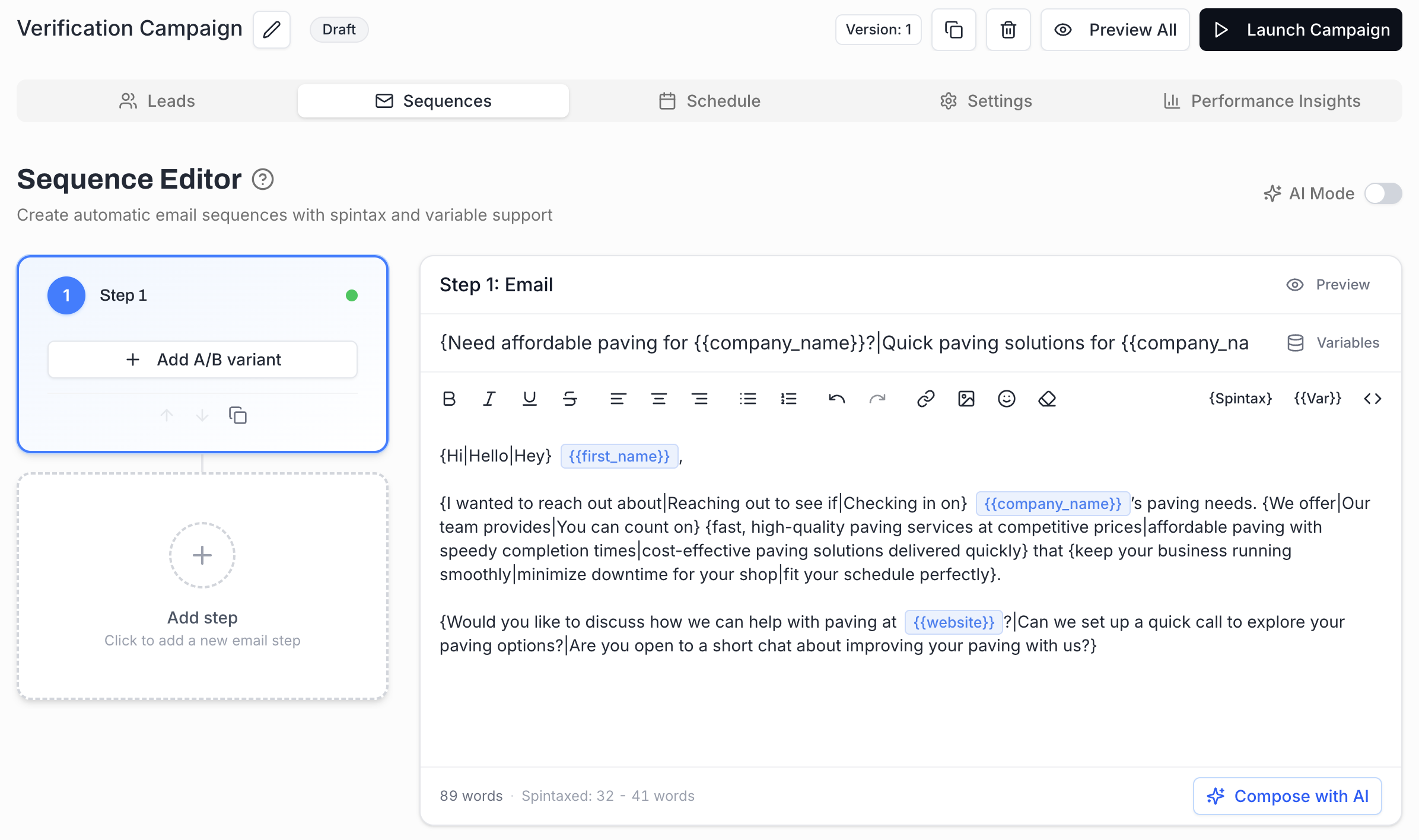
The left panel lists every step in your sequence. For each step you see:
The step number (Step 1, Step 2, ...).
An Add A/B variant button - one click adds a Variant B that you can edit independently of A. You can keep adding variants (C, D, ...) for split-testing. See A/B Testing Your Emails.
Small action icons under each card to reorder (up/down arrows) and duplicate the step.
An Add step card at the bottom - "Click to add a new email step" - to append a follow-up.
Click any step card to load it on the right.
When you select a step the right panel shows:
A header with the step number (e.g. Step 1: Email), a Preview button, and a Variables button on the top right.
The subject line field (placeholder: "Your amazing {offer|subject} goes here").
A rich-text toolbar: bold / italic / underline / strikethrough, alignment, bullet/numbered lists, link, image, emoji, undo/redo.
Three insertion buttons on the right of the toolbar: {Spintax}, {{Var}}, and <> (HTML mode).
The body editor (placeholder: "Start typing your email or use AI to compose...").
A word count at the bottom of the editor.
A Compose with AI button under the body for one-shot AI generation of the current step.
An Inbox Preview strip showing how the step will appear in a recipient's inbox list (sender name, subject, date, snippet).
The AI Mode toggle in the top-right corner of the page flips the editor into a guided wizard that generates a different email per lead at send time, using the lead's data and a brief you give it once. Full deep dive in AI Features → AI Mode.
A floating Save All button sits at the bottom of the editor. It saves every step and every variant in one action. Keyboard shortcut: ⌘S on Mac, Ctrl+S on Windows/Linux. ⌘+Enter / Ctrl+Enter opens the Preview dialog.
Add a step - click the Add step card at the bottom of the step list. Step 1 always sends as a brand-new email; every later step automatically threads under the previous email so the conversation feels like one ongoing exchange.
Reorder a step - use the up/down arrow icons on the step card.
Duplicate a step - the duplicate icon copies the subject, body, variants, and timing into a new step you can tweak.
Delay between steps - each step after Step 1 has a delay control (see below). Step 1 always sends as soon as the campaign sending window opens; the wait on Step 2+ is the gap between the previous step and this one.

Steps that have already been sent are locked. Once a step has gone out to even one lead it can't be reordered or deleted - that protects the integrity of conversations already in flight. You can still edit the content of a sent step for future leads, but its position and existence are fixed.
Between any two steps in the timeline you'll see a small Wait … pill (e.g. Wait 1 day). Click it and an inline editor opens with two inputs - days and hours:
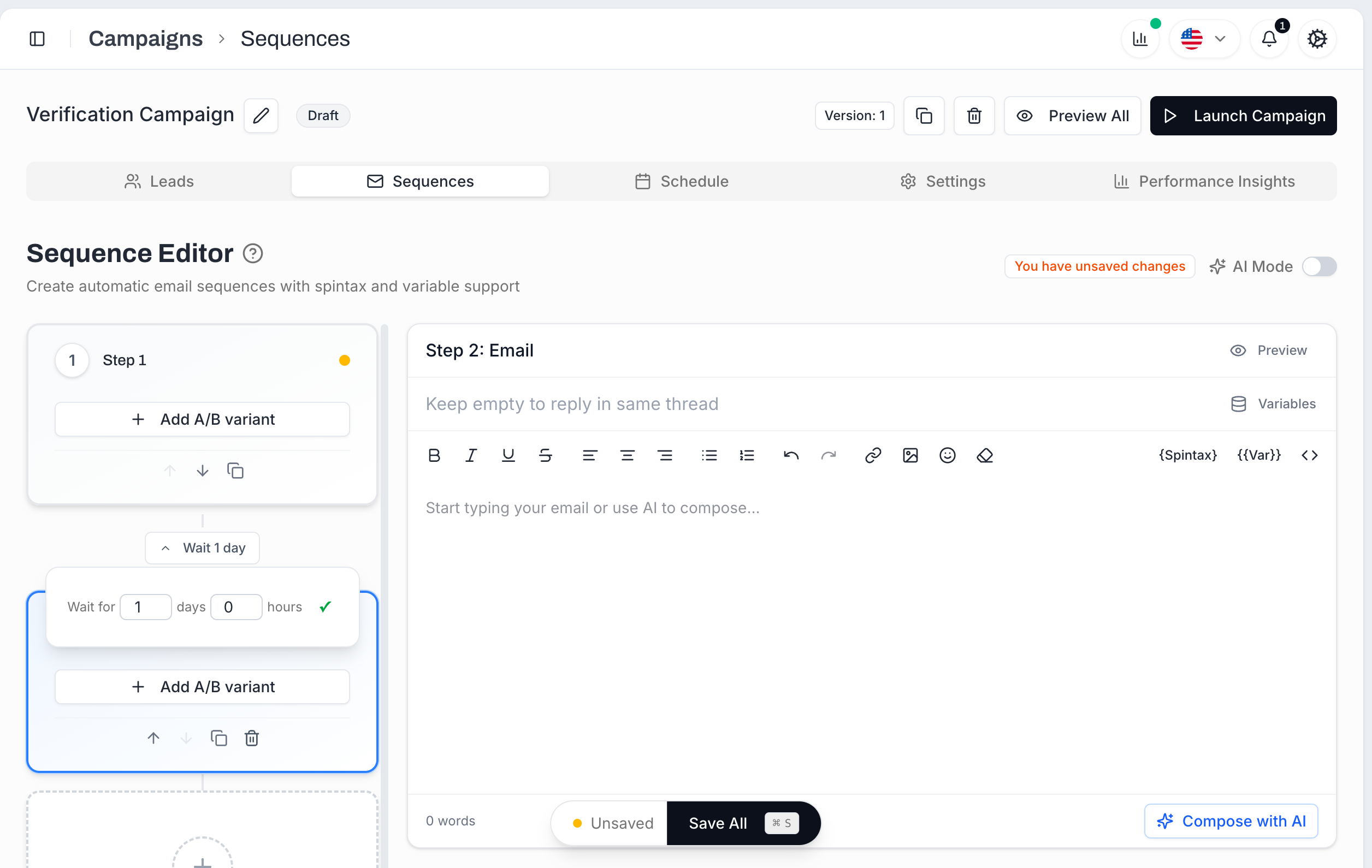
This is one of the things MailBeast does differently from most cold-email tools - delay is configurable in days and hours, independently per step. Many tools only let you set whole days (e.g. "send the follow-up 3 days later"), which forces awkward bunching: every follow-up lands at exactly the same time of day as the original send. With days + hours you can shape the cadence properly:
Same-day follow-ups - "send Step 2 four hours after Step 1" (0 days 4 hours). Useful for time-sensitive offers, event invites, or testing immediate-vs-next-day reply behaviour.
Asymmetric pacing - "Step 2 in 2 days 6 hours, Step 3 in 4 days 0 hours". Shifts the time-of-day each step lands so your follow-ups don't all hit the recipient's inbox in the same morning batch.
Quiet-hours avoidance - schedule a follow-up to land mid-morning of the recipient's working day instead of just "+72 hours from the previous send", which can drop overnight on Day 4.
Bounds: 0-365 days, 0-23 hours per step. The combined delay must be at least 1 hour - the editor enforces a minimum gap so you can't queue two emails to the same lead in the same minute.
The wait is calendar-elapsed time, but the actual send still respects the campaign's Schedule tab (sending days, sending hours, daily cap) - if Wait 3 days lands on a Saturday and your sending window is Mon-Fri, MailBeast holds the email until Monday's window opens.
Click Add A/B variant on any step to create a Variant B (then C, D, ...) that you can write differently from Variant A. MailBeast distributes traffic across variants according to the split you configure, and tracks the open / click / reply rates per variant separately.
For details on traffic distribution and how winners are picked, see A/B Testing Your Emails.
The two buttons on the right of the toolbar are how personalization gets into your emails:
Variables (or {{Var}}) opens a searchable picker with every variable available for this campaign - your lead's first name, company, custom CSV columns, etc. Click a variable to insert it at the cursor as {{first_name}}, {{company_name}}, {{custom_<your column>}}, and so on. You can also just type {{ directly in the body and the same picker pops up at the cursor - keep typing to filter ({{comp → company_name), or click a suggestion to insert.
{Spintax} wraps the cursor or selection in a {|} block. Add |-separated alternatives inside ({Hi|Hello|Hey}) and MailBeast picks one per recipient at send time.
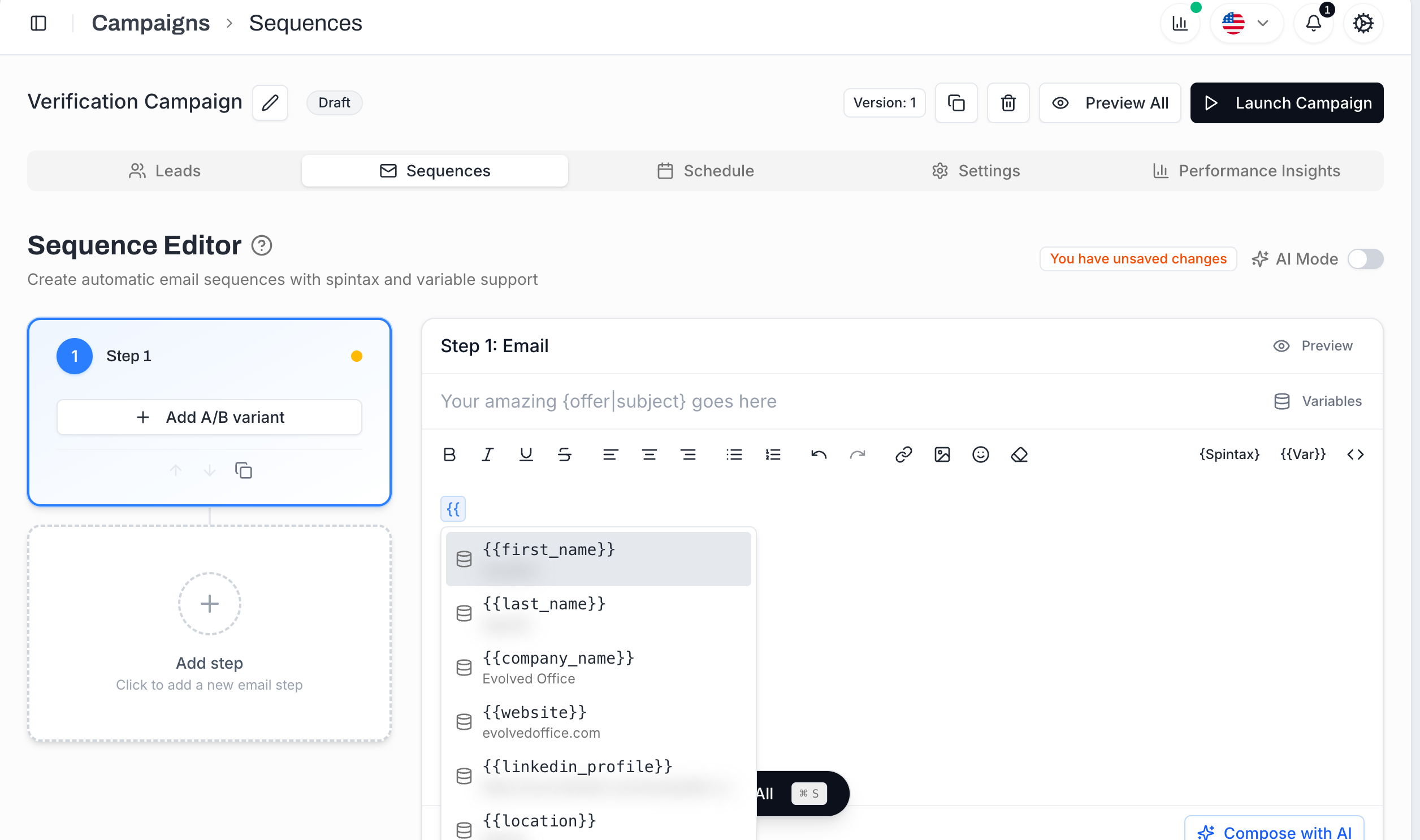
Both are covered in detail in their own articles:
Two different AI features live inside the editor. They solve different problems, so pick whichever matches what you need:
AI Mode - toggle in the top right of the page. Opens a six-step brief wizard, then generates a different email per lead at send time using the lead's data. This is MailBeast's flagship AI feature - the deep dive lives in AI Features → AI Mode.
Compose with AI - button under the body composer. Generates one spintaxed template for the current step from a 3-question form. Same email-shape for everyone, with {spin|spin} variations. Covered in AI Features → Compose with AI.
Quick rule of thumb: AI Mode when you have decent enrichment and want per-lead personalization. Compose with AI when you want a fast spintaxed template you'll edit by hand.
For the full picture - including reply categorization that runs automatically after your campaign sends - see AI Features Overview.
Start with a strong Step 1. Steps 2-4 build on whatever momentum the first email creates. A weak opener and the follow-ups have nowhere to go.
Keep cold sequences to 3-5 steps. More than that and you're just annoying people. Most replies land on Steps 2 through 4 anyway.
Use spintax in every step. It's the single cheapest way to keep Gmail and Outlook from grouping your sends as bulk. See Spintax: Creating Email Variations.
Each follow-up should add new value. Don't just "bump" the thread. New angle, different question, fresh case study.
Preview against a real lead before launching, with Preview in the editor or Preview All in the page header. Variables and spintax both render with real data so you catch broken merges and awkward sentences.

