Variables let you personalize each email with data specific to the recipient. Instead of sending the same generic message to everyone, MailBeast replaces {{variable_name}} with that lead's actual value at send time.
Write {{variable_name}} anywhere in the subject or body. When the email is sent, MailBeast swaps it for the lead's data.
Hi {{first_name}}, I noticed {{company_name}} is hiring {{custom_role}}.becomes
Hi Sarah, I noticed Acme Corp is hiring senior engineers.
Variable names are lowercase with underscores between words - first_name, company_name, linkedin_profile. The variable picker inserts them in this exact form. If you type {{firstName}} (or any other variation) by hand it won't resolve and the email goes out with a blank where the name should be.
There are two kinds: standard contact fields and custom variables (driven by the columns in your CSV).
Available for every campaign as long as that field has a value on at least one lead. The picker hides fields that are empty everywhere.
Variable | Description |
|---|---|
| First name |
| Last name |
| First + last name |
| Company name |
| Job title |
| Company website |
| LinkedIn profile URL |
| Lead's location (whatever format you imported - city, country, "City, Country", etc.) |
{{email}} isn't offered in the picker - it's the recipient's address, not something to repeat back at them inside the email body.
System variables (sender name, current date, campaign name, etc.) aren't supported. If you need that kind of value you'll have to bake it into your template or use a custom column.
Any column in your imported CSV that isn't one of the standard fields becomes a custom variable named {{custom_<slug>}}. The slug is the column header lowercased and de-spaced - "Recent Funding" in your CSV becomes {{custom_recent_funding}}, "Pain Point" becomes {{custom_pain_point}}.
If your CSV has these headers:
email,first_name,company_name,job_title,recent_funding,pain_pointThen the variables available in the editor are:
{{first_name}} (standard)
{{company_name}} (standard)
{{job_title}} (standard)
{{custom_recent_funding}}
{{custom_pain_point}}
A real-world template might read:
Subject: Quick thought for {{company_name}}

Hi {{first_name}},

Saw the {{custom_recent_funding}} announcement - congratulations.

As {{job_title}}, you probably deal with {{custom_pain_point}}. We help
companies like {{company_name}} solve this in under a week.

Worth a 15-min chat?
Each lead gets their own version, rendered from their row.
A custom column can be marked as an Image URL instead of plain text. The value is still a URL in the CSV, but MailBeast wraps it in an <img> tag at send time so recipients see the actual image, not a raw link.
Type | Inserted as | Rendered as |
|---|---|---|
Text |
| The literal text from the CSV |
Image URL |
| An |
Per-lead logos / avatars - personalize each email with the recipient's company logo or photo, fetched from a service like Clearbit or Hyperise.
Product screenshots / landing-page previews - show a personalized screenshot relevant to the prospect.
Animated video thumbnails - tools like Sendspark, Vidyard, and Loom output animated GIF thumbnails. Drop the URL in an Image URL column, wrap it in a clickable link, and recipients see what looks like an auto-playing video preview.
During CSV import: on the column-mapping screen, set the column's type to Custom Variable - a Text | Image URL toggle appears. Pick Image URL. MailBeast preselects Image URL on column names that obviously look like images (logo_url, avatar, etc.).
Editing a lead manually: in the Edit Lead panel, Custom Fields section, click + Add, name the field, then use the type toggle to select Image URL before entering the URL.
An absolute URL with https:// or http://. Protocol-relative or relative paths won't render.
A direct image (.jpg, .png, .gif, .webp) or a service endpoint that returns an image (Clearbit, Hyperise, etc.).
Not a video file - email clients don't reliably render <video> tags. Use the thumbnail-image-with-link pattern instead.
If a lead has no value in an Image URL column, MailBeast removes the <img> tag entirely from that lead's email rather than sending a broken-image icon.
Email clients strip <video> tags. Every personalized-video tool (Sendspark, Vidyard, Loom, Hippo Video, Bonjoro) follows the same recipe: send an animated thumbnail image and link it to a landing page where the video actually plays.
To replicate in MailBeast:
In your CSV, include two columns per lead:
video_thumbnail - animated GIF URL (mark as Image URL).
video_link - URL of the landing page (Text type).
Wrap the image in the link in your template (use the <> HTML toggle in the editor toolbar):
<a href="{{custom_video_link}}">
  <img src="{{custom_video_thumbnail}}" alt="Watch video">
</a>
Recipients see what looks like a playing video preview that takes them to the landing page on click.
Works:
Cloudinary, Imgix - CDN with a free tier, clean URLs.
Service-generated URLs - Clearbit Logo API, Hyperise, Sendspark, Vidyard, Loom (the URL they hand you is fine to drop straight in the CSV).
Doesn't:
Dropbox share links - redirect to a preview page, not the image itself.
Auth-gated URLs (private S3, signed URLs that expire) - the URL may be invalid by the time the recipient opens the email.
Two ways, both end up at the same picker:
Toolbar button. Click {{Var}} on the right side of the editor toolbar (or Variables at the top right of the editor) to open the picker, then click any row to insert it at the cursor.
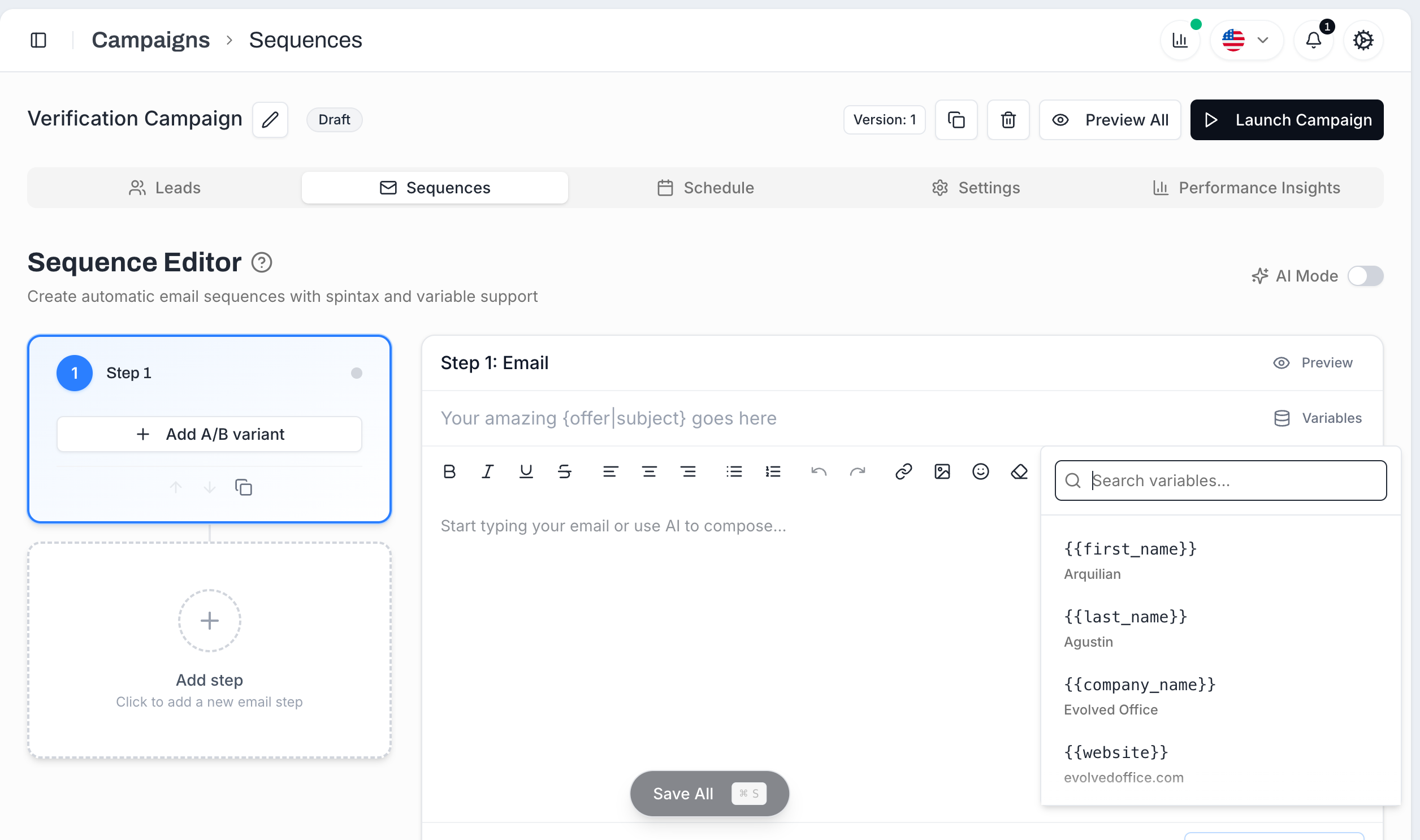
Type {{ in the body. Just typing the two opening braces inline pops up the same picker right at the cursor - no need to break flow and click the toolbar. Continue typing to filter ({{comp narrows to company_name etc.), or click a suggestion. Insertion replaces your typed {{ with the proper variable token.
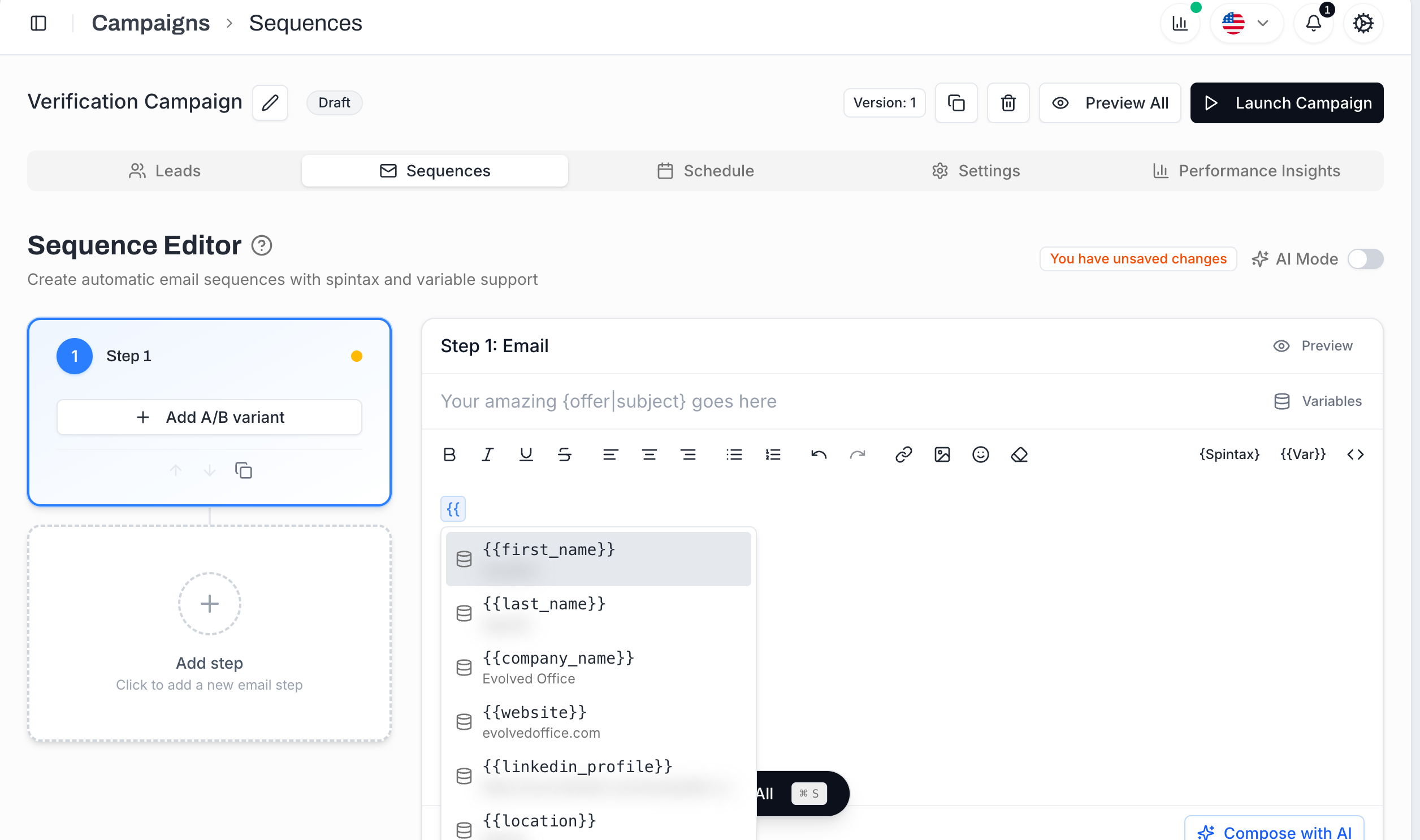
Both paths show a sample value next to each variable - pulled from a real lead in your campaign - so you can see what each variable will produce before inserting. Image-URL variables show with a small image badge so you can tell them apart from text fields.
When a {{variable}} doesn't have a value for a particular lead, MailBeast strips the placeholder out of that lead's email rather than leaving {{variable}} visible. So Hi {{first_name}, with an empty first name renders as Hi , - which still looks broken.
The defences are upstream of the template:
Use the variable picker - it only shows fields where at least one lead has a value, but it doesn't tell you the fill rate of each field. Open the lead list and skim the column to confirm most rows have data before relying on it in your subject or first sentence.
Don't put fragile variables in the subject line. A blank subject is the fastest way to look like spam. Stick to high-fill fields ({{first_name}}, {{company_name}}) for subject lines, and reserve enrichment fields ({{custom_recent_funding}}, {{custom_pain_point}}) for the body where a missing one degrades more gracefully.
Use spintax for graceful degradation. If {{custom_pain_point}} is only filled for half your list, you can write the sentence as {{first_name}}, scaling outreach is a constant headache. for the empty half and {{first_name}}, {{custom_pain_point}} is a constant headache. for the filled half - or, more practically, segment those leads into a separate campaign whose copy doesn't depend on the missing field.
Use AI Mode. With AI Mode on for a step (see The Sequence Editor → AI assistance), MailBeast personalizes each lead's email individually and writes around missing data instead of leaving gaps. AI Mode also exposes an Edit Fallback Template button on each AI-generated step - that template is the safety net used when AI personalization fails for a given lead.
Don't over-personalize. 2-3 variables per email is the sweet spot. Ten variables in a short email feels creepy, not personal.
Variable names match exactly what the picker shows. Lowercase, underscores between words: {{first_name}} resolves, {{firstName}} or {{First_Name}} does not.
High-fill fields (90%+) are safe in the subject line. First name and company name almost always have values. Enrichment fields ({{custom_*}}) depend entirely on what your CSV had - check fill rate before relying on them.
Don't create a variable for data only a handful of leads have. If only 5 of 500 leads have a recent_funding value, your template falls apart for the other 495. Either segment those into their own campaign, or use spintax to compose around the gap.
Keep custom field names simple and consistent across CSVs. recent_funding is fine; Recent Funding (announcement) becomes custom_recent_funding_announcement_ and clutters the picker.
Test against real leads. Use the Preview button on the editor and pick a real lead - that catches broken merges, unfilled fields, and awkward formatting before you launch.
Adding Leads to a Campaign - the CSV columns you import are what becomes available as {{custom_*}} variables.
Spintax Guide - combine variables with random variations for unique emails per lead.
Sending Test Emails - preview each step against a real lead before launching.

