A/B testing lets you compare different versions of an email to find out what performs best. Instead of guessing whether a direct or casual approach works better, you let real data decide.
Each step in your sequence ships with a single variant labelled A. Clicking Add A/B variant on the step card creates a Variant B (then C, D, ...) you can edit independently of A. MailBeast distributes leads across the variants according to the split you configure, then tracks open / click / reply rate per variant separately so you can see which one wins.
Open your campaign from Campaigns and go to the Sequences tab.
Select the step you want to test.
On the step card in the left panel, click Add A/B variant. Variant B appears next to A with a 50/50 split.
Switch to Variant B and write the alternative version - different subject, different body, or both.
Repeat Add A/B variant to add C, D, etc. Each new variant starts as a copy of the current variant so you have a starting point.
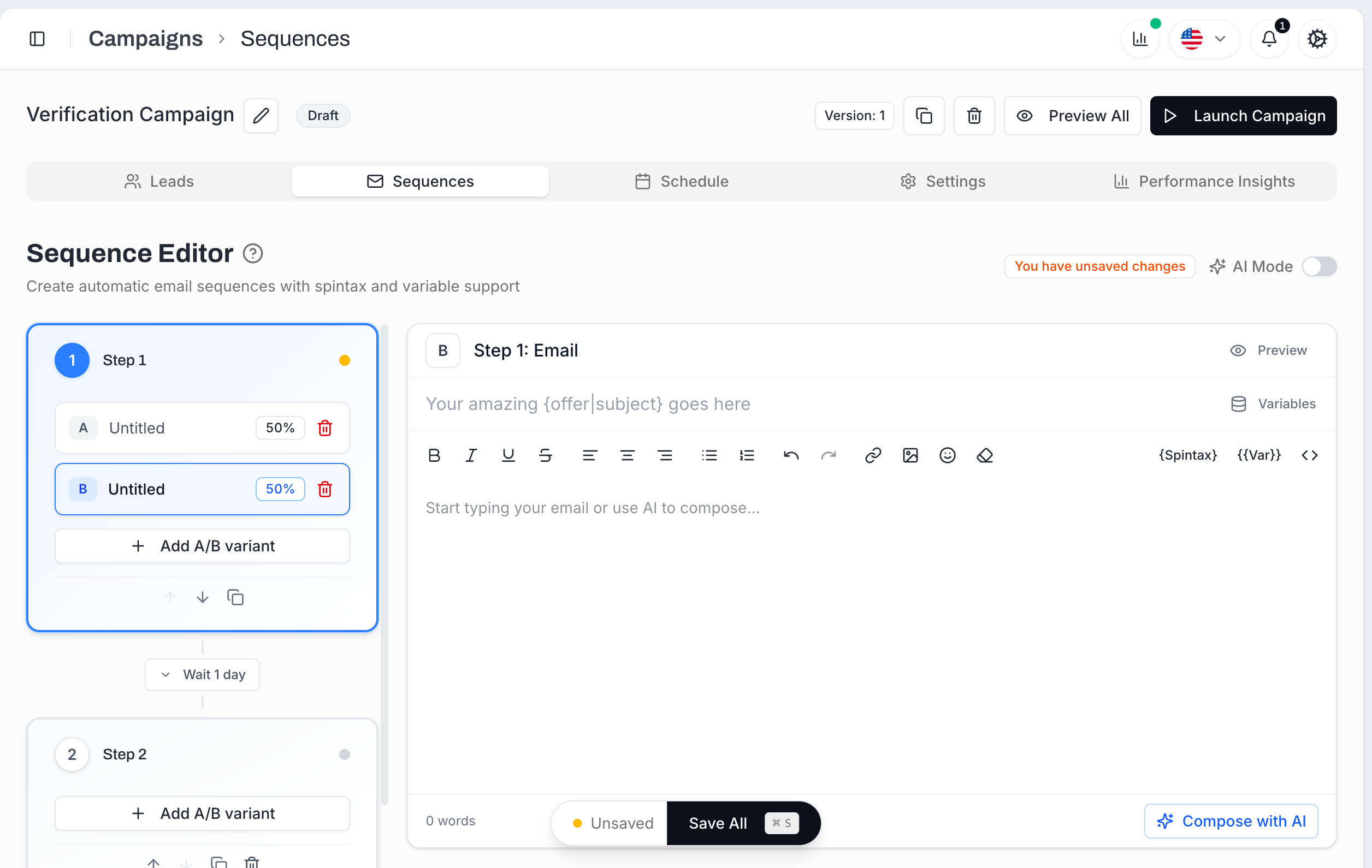
Variants are per-step. A single sequence can have variants on Step 1 only, on every step, or any mix.
A/B testing works best when you change one thing at a time. Otherwise, when a variant wins, you don't know which change caused it. The highest-impact things to test, in roughly this order:
Subject line (biggest lever). Decides whether the email gets opened at all. Try question vs. statement, personalized vs. generic, short vs. specific.
Opening line. Sets the tone. Try compliment-based vs. problem-based vs. direct.
Call to action. Changes reply rate dramatically. Try low commitment ("worth a quick look?") vs. medium ("15-min call?") vs. high ("send over a demo?").
Email length. Short (3-4 sentences) vs. medium (6-8). Shorter usually wins on cold outreach, but it depends on the audience.
Tone. Formal and professional vs. casual and conversational.
Personalization depth. Generic copy vs. one-line custom hook drawn from a {{custom_*}} field.
Open your campaign and click the Performance Insights tab.
Scroll to the per-step section - each step with multiple variants shows a per-variant row with:
Emails sent - how many leads received that variant.
Open rate.
Click rate.
Reply rate.
The leading variant on the metric you optimize for is highlighted as the Winner.
Pick the metric that matches your goal: usually reply rate for cold email, or open rate if you're specifically optimizing the subject line.
You can stop sending a variant at any time without waiting for auto-optimization. This is the right move when one variant is clearly losing on the metric you care about (reply rate, open rate, click rate) and you don't want to keep burning sends on it.
The fastest path is right inside the Sequences tab: each variant row on the step card has its own active toggle next to the traffic percentage. Flip the toggle off and that variant stops sending; the traffic moves to the remaining active variants. The disabled variant stays in the step (so its history is preserved) but doesn't get any more sends.
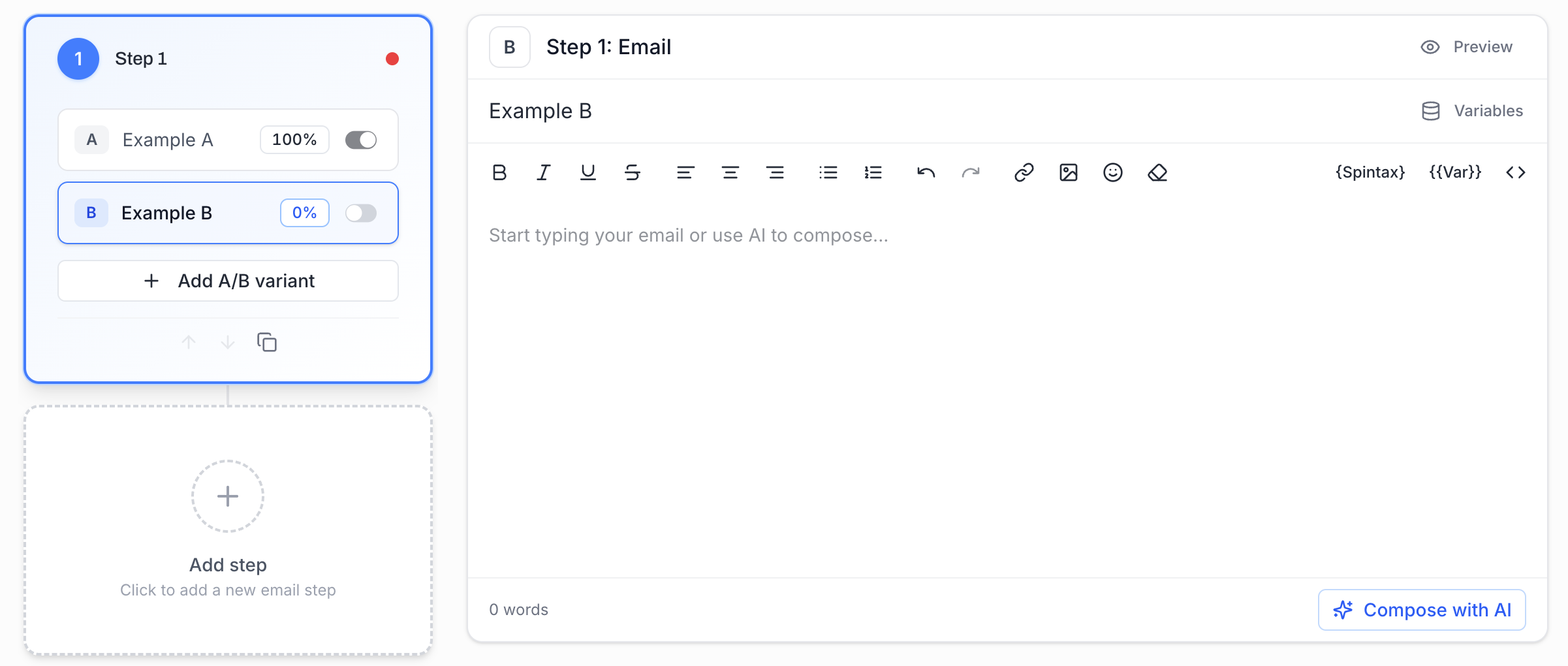
The same control is also exposed in Performance Insights → A/B Steps Analytics, where each variant row has a Disable Variant action so you can disable a variant directly from the data view that told you it was losing.
Already-queued sends for the disabled variant are cancelled. You can re-enable a variant later from either place by flipping the toggle back on.
Campaign Settings has a single A/B Testing auto-optimization toggle that, once enabled, automatically picks a winner per step and switches all traffic to it.
What it optimizes for: reply rate. If you want to optimize by clicks
When it kicks in: every active variant on the step needs at least 1,000 emails sent. Below that the sample is too small to call a winner reliably.
What it does, exactly: at the next optimization run after eligibility is reached, the variant with the highest reply rate is set to 100% traffic and the others are disabled (their traffic share goes to 0 and they stop sending). It's a hard switchover, not a gradual shift - from then on the step sends only the winner.
Ties: if two variants are tied on reply rate, the winner is the one with the earliest letter (Variant A wins ties over Variant B).
The toggle lives in Settings → Optimization → A/B Testing. It applies to the whole campaign, not per-step.

Why the 1000-per-variant minimum? Reply rates on cold outreach are usually 1-5%, so a step needs hundreds of sends just to produce double-digit reply counts. With fewer sends per variant the "winner" is statistical noise. The auto-picker waits until the difference is real.
Test one variable at a time. If you change both the subject line AND the body, you won't know which change drove the result.
Wait for enough data. 50-100 sends per variant before you take a casual look; 1,000+ if you want to call it definitively. Calling a winner after 10 sends is guessing, not testing. Even a 1,000+ could be a small testing group if you send large lists.
Combine winners. Once you know the best subject line and the best CTA, combine them into a single optimized version for your next campaign.

