Always test your emails before launching a campaign. A test email shows you exactly what your recipients will see - with variables resolved, spintax rendered, signatures appended, and tracking applied.
Open your campaign from Campaigns and go to the Sequences tab.
Select the step (and the variant, if you've added A/B variants) you want to test.
Click Preview at the top right of the editor (keyboard shortcut: ⌘+Enter on Mac, Ctrl+Enter on Windows/Linux). The Detailed Email Preview dialog opens.
Inside the preview dialog, click Send Test Email at the top right. The send-test-email form opens.
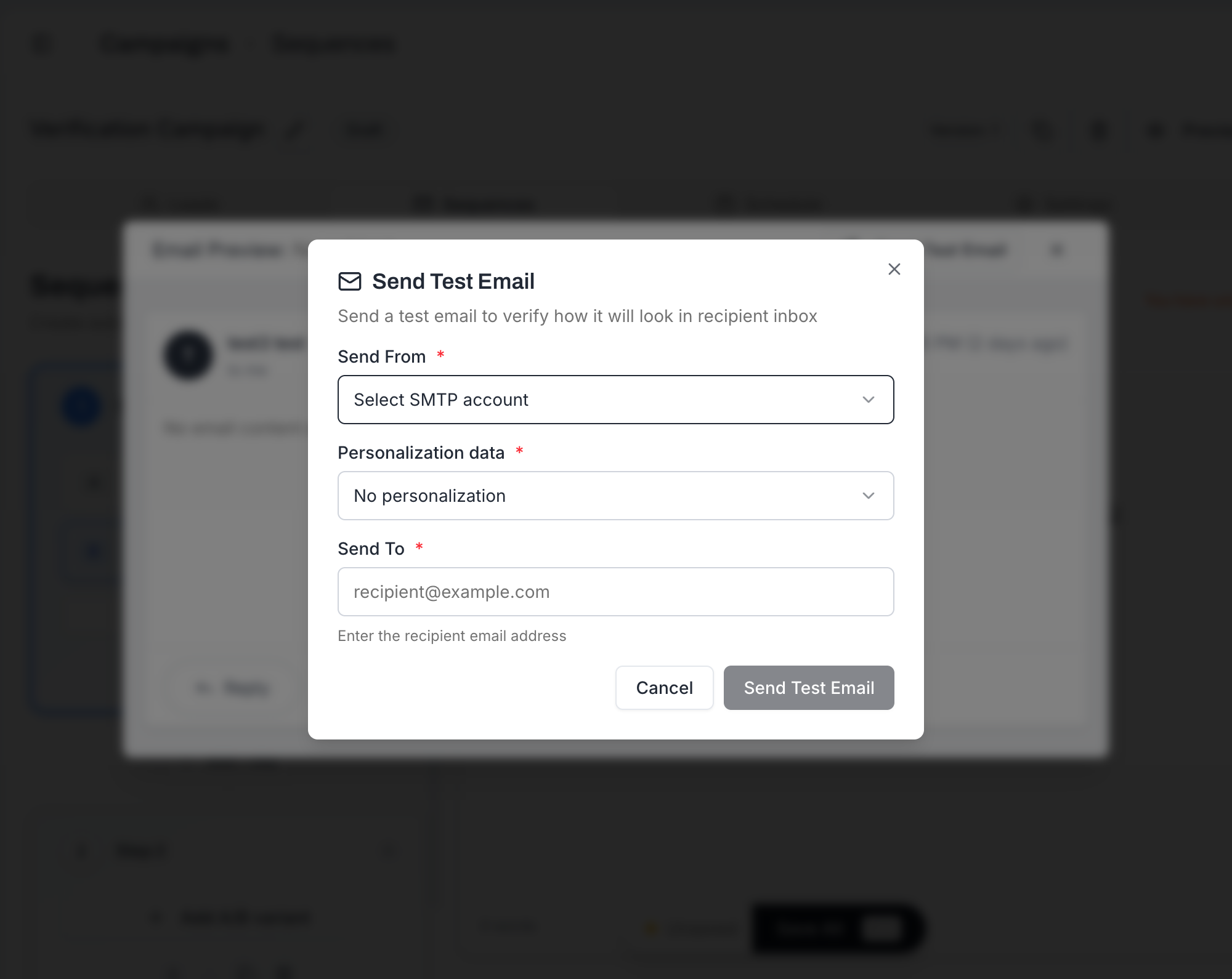
Fill in the form:
Send From - which of your connected SMTP accounts to send from. This determines the sender name, email address, and signature.
Personalization data - pick a specific lead to render variables against, or leave at No personalization to send placeholder text.
Send To - the recipient email address (usually your own).
Click Send Test Email.
The test email is sent immediately. Check your inbox (and spam folder) within a minute or two.
A test email is a faithful replica of what your leads will receive:
Variables are replaced with data from the selected test contact (or placeholder text if none is selected).
Spintax picks one random version.
Signature from the chosen sending account is appended.
Open and click tracking are applied if you've turned them on in Campaign Settings - so you can verify links go where they should.
Subject line renders with all personalization filled in.
Test emails are limited per user per day. You won't be allowed to send all your leads through email testing.
Test emails count toward the SMTP account's daily sending quota.
This limit exists to prevent test emails from impacting your account's deliverability reputation.

Why the limit matters: Email providers track sending patterns per account. Sending dozens of test emails in quick succession can look like unusual activity and temporarily affect your sending reputation.
Run through this checklist for every test email:
[ ] Subject line renders correctly - variables filled in, spintax looks natural
[ ] Body formatting looks right - no broken HTML, proper spacing
[ ] Variables are filled with realistic data (not blank or showing {{variableName}})
[ ] Spintax resolved to a natural-sounding variation
[ ] All links work and go to the correct destinations
[ ] Signature appears at the bottom of the email
[ ] Signature links work
[ ] Signature formatting looks correct
[ ] Email landed in the inbox, not spam - check your spam folder
[ ] No spam warnings from your email provider
Send to both Gmail and Outlook. They render emails differently. What looks perfect in Gmail might have formatting issues in Outlook, and vice versa.
Send to yourself and a colleague. A fresh pair of eyes catches things you miss after staring at the same email for an hour.
Test with a real lead selected. Using placeholder text does not catch issues like missing data fields or awkward fallback values. Select an actual lead from your campaign to see the real experience.
Test from different SMTP accounts. If you have multiple accounts assigned to the campaign, test from each one to verify that signatures and sender names are correct.

