Signatures are set per email account and automatically appended to every campaign email sent from that account. They keep your sender identity consistent without you having to retype the sign-off in each step.
Open Email Accounts from the sidebar.
Click the row of the account you want to configure - the account detail panel opens on the right.
Open the Settings tab inside the panel.
Scroll to Sender Settings → Signature.
Type or paste your signature.
Click Save Settings.
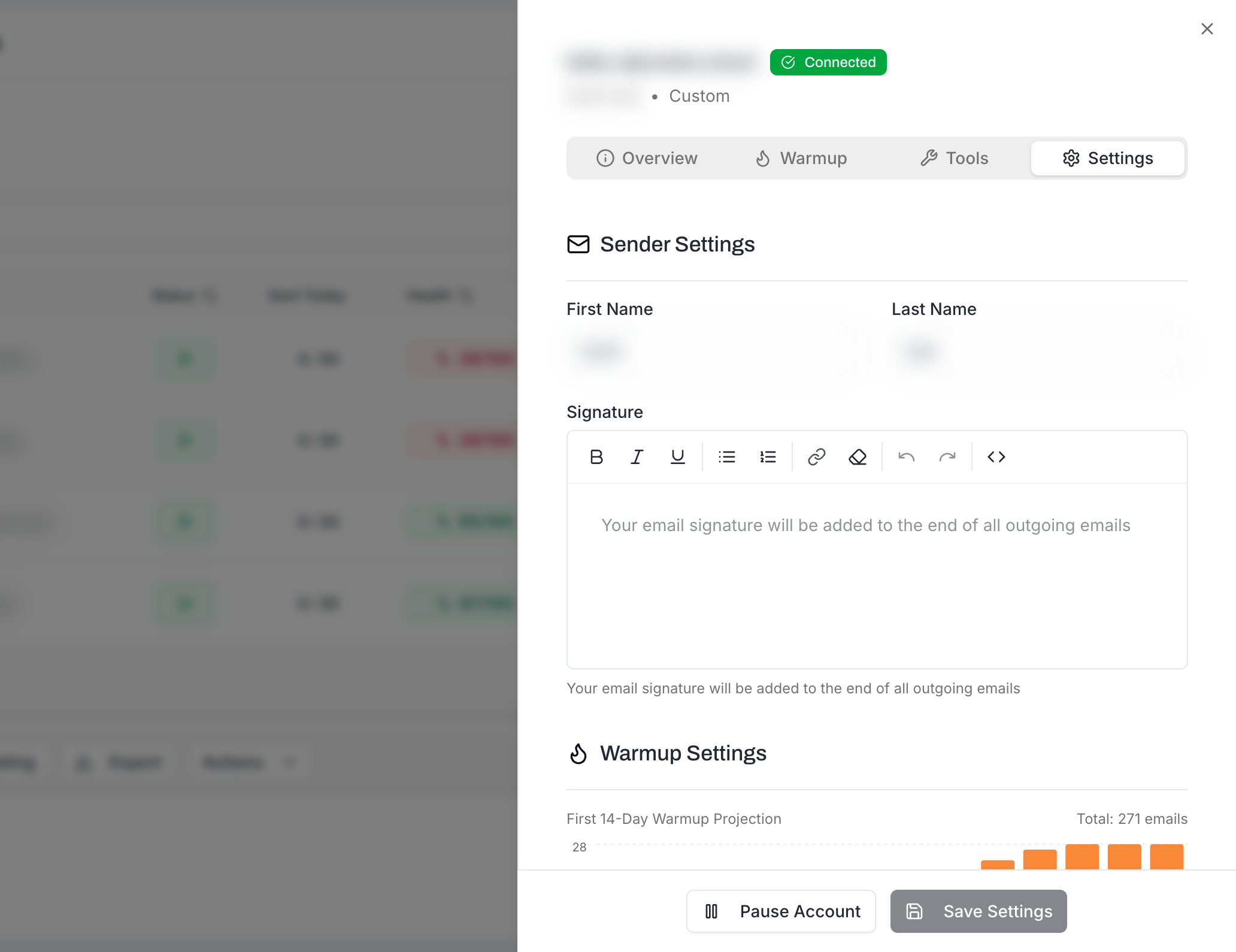
The signature is appended to every email sent from this account, across every campaign that account is assigned to.

Bulk-set signatures across multiple accounts. Select several accounts in the Email Accounts table, click Bulk Edit, and set one signature in the Signature field of the bulk panel. It overwrites the signature on every selected account in one action - useful when you've connected 10 mailboxes for the same persona and want them all to send with the same sign-off.
The editor uses a slimmer feature set than the campaign email composer - it's tuned specifically for sign-off blocks:
Bold, italic, underline formatting.
Bulleted and numbered lists (rarely useful for signatures, but available).
Links - http, https, and mailto: URLs. Use it for your website, LinkedIn, or a calendar booking link.
Multi-line layout - line breaks, paragraph breaks, and the standard "Name / Title / Company / Contact" block style.
Things the signature editor does not include (intentionally - signatures shouldn't fight the email body for attention):
Inline images via the toolbar. There's no image-insert button in the signature editor. If you must include an image, paste a complete HTML snippet with an <img src="..."> via the <> (HTML) toggle - the editor preserves the tag - but read the What to Avoid section before doing it.
Cold email signatures have different requirements than corporate email signatures. The goal is to look like a real person sending a personal email, not a marketing department blasting a newsletter.
Best,
John Smith
Sales Director | Acme Corp
[email protected]
Clean, minimal, looks like something a real person would type. Includes the essential information: name, role, company, and contact info.
[LARGE LOGO IMAGE]
John Smith | Sales Director | Acme Corporation
+1 (555) 123-4567 | [email protected]
acme.com | LinkedIn | Twitter | Facebook
---
This email is confidential and intended solely for the use of
the individual to whom it is addressed. If you are not the
intended recipient, please notify the sender immediately...
[200 words of legal disclaimer]Keep it minimal. Name, title, company, and one contact method.
One link maximum. Your website or LinkedIn - not both plus Twitter, Facebook, and Instagram.
No images. The editor doesn't make it easy on purpose. Skip them.
Skip the legal disclaimer. In cold email, disclaimers add length without value and signal "bulk email."
The signature is tied to the email account, not to the campaign. This means:
If you assign 3 email accounts to a campaign, each account sends with its own signature.
This is by design - each sender's emails should look personal and consistent with their identity.
You don't need to configure signatures per campaign. Set it once on the account and it applies everywhere.
Tip: If you manage multiple email accounts, set up signatures for all of them when you first connect them. This way every campaign you create automatically has signatures ready.
Verify with a test email. Use the campaign's Send Test Email flow to see the actual rendered signature in your inbox. Check it in both Gmail and Outlook - they render slightly differently.
The whole campaign is text-only? With Send as Text Only inside your campaign under Settings → Optimization, MailBeast strips the body to plain text and renders the signature as plain text.
Keep signatures consistent across mailboxes running the same persona - if [email protected] and [email protected] both belong to the same person, they should sign off identically. Use Bulk Edit to keep them in sync.

