Conversion tracking connects your outreach activity to real business outcomes. When a lead books a meeting, signs up for a trial, or closes a deal, marking them as converted lets you measure which campaigns, sequences, and email variants actually drive results - not just opens and replies.
A conversion is when a lead completes the action your campaign was designed to produce. What counts as a conversion depends on your business:
Booked a demo or discovery call
Signed up for a free trial
Made a purchase
Signed a contract
Agreed to a partnership
MailBeast does not define what a conversion is for you - you decide by marking a lead as "Converted" when the outcome happens.
The only place to mark a lead as Converted is from their thread in InboxHub - the Leads tab is read-only for statuses (the campaign engine drives those automatically; see Lead Statuses Explained → Changing Statuses Manually).
Open the lead's conversation thread in InboxHub.
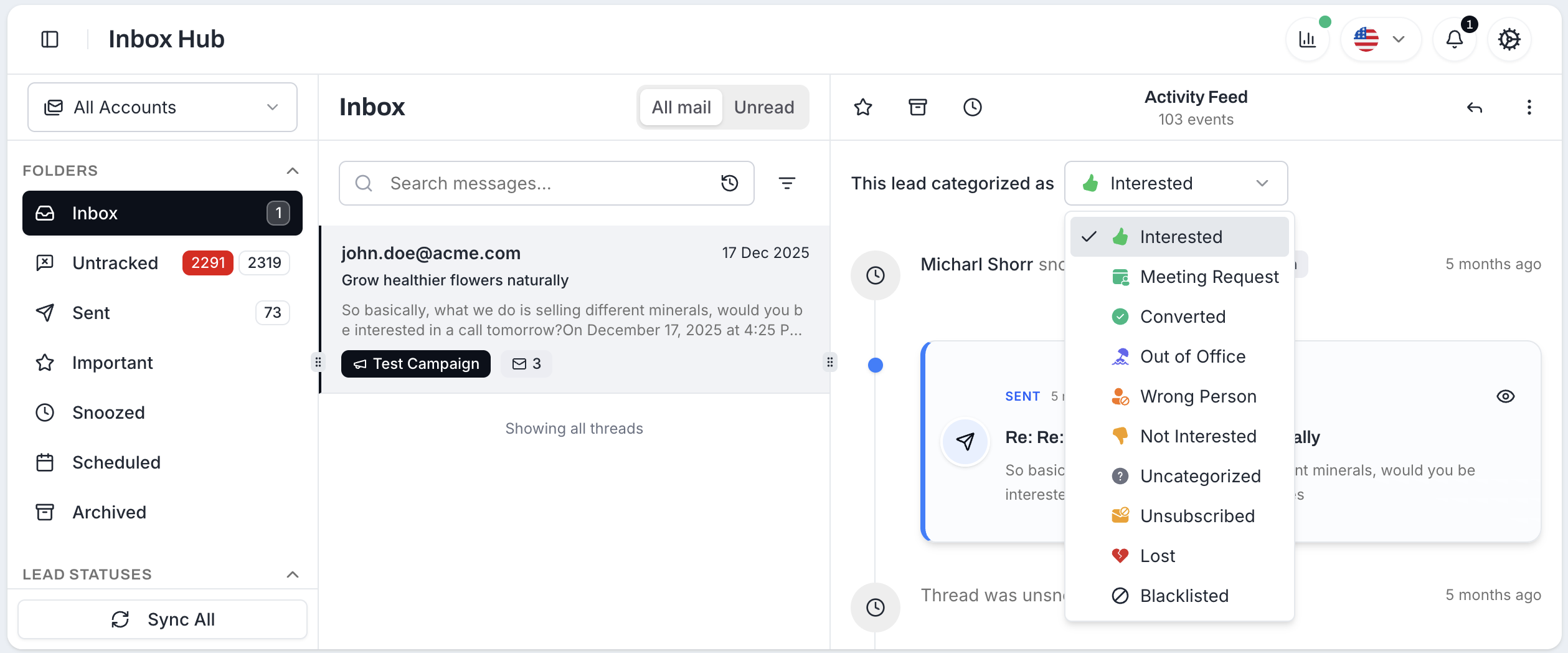
At the top of the thread, find "This lead categorized as [Status]" and open the dropdown.
Pick Converted.
A Lead Converted dialog appears with a single field, Lead Value (optional), prefixed with $. Type the monetary value (e.g. 5000 for a $5,000 deal) or leave it blank.
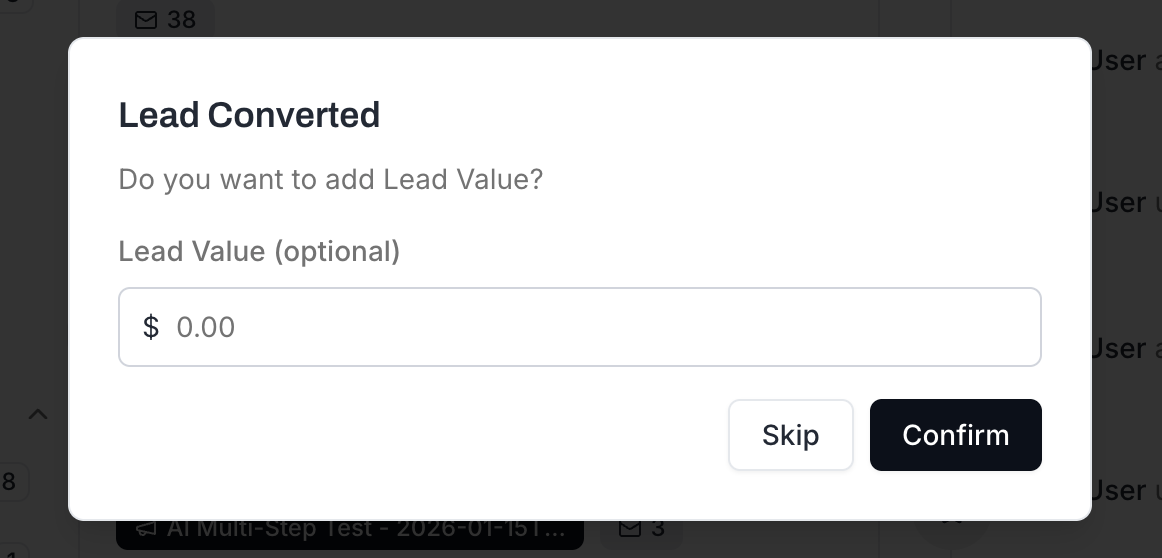
Click Confirm to save the value, or Skip to convert the lead without a value. Both buttons mark the lead as Converted - Skip does not cancel the conversion.
You can edit the value later from the same dropdown. Picking Converted again on an already-converted lead opens the dialog in Edit Lead Value mode; saving creates a new conversion version with the updated value (the original is preserved in the history).
Pick a number that represents the conversion's worth to your business and stick to one convention across the campaign so the totals are comparable.
Common conventions:
Total deal value - full contract or purchase price (e.g. 12000 for a $12,000 annual contract). Easiest if the deal is one-shot.
Annual contract value (ACV) - for subscriptions, log the first year's billed amount (588 for a $49/mo plan). Keeps comparisons clean across campaigns whose deals close at different cadences.
First-month or first-deal value - if the customer is brand new and you can't predict retention, log just the first invoice and edit the value later if it grows.
Currency: values are recorded in USD - the dialog field is dollar-prefixed and there's no per-organization currency setting.
All conversion values can be edited if you decide to adjust them in future.
When you mark a lead as converted, MailBeast records two things:
Which email got them to reply - the step (and A/B variant) that produced their first reply. That's the email credited for the conversion in analytics. It tells you which message actually broke through.
When you marked them converted - the date you closed the deal, separate from when they replied. A lead can reply in January and convert in March; both dates are tracked.
So in analytics:
"Which step drives the most conversions?" looks at the email that opened the conversation.
"How many conversions happened this week?" looks at the close date.
Conversion data lives on the Performance Insights tab inside each campaign:
Overview KPI cards - Conversions (total leads marked as Converted), Conversion Value (sum of recorded values), and Conversion Rate (% of contacted leads that converted) sit at the top of the tab.
Funnel view - the journey from imported leads → contacted → replied → converted, so you can see exactly where the drop-off is. High reply rate but low conversion rate usually means your sales follow-up after the reply needs work, not the email copy.
A/B Steps Analytics - if a step has multiple variants, conversions and conversion value are tracked per variant alongside opens, clicks and reply rate. A subject line with the highest reply rate isn't always the one that produces the most revenue - the per-variant conversion column is what tells you which variant is actually winning the only metric that matters.
Mark conversions promptly. The sooner you record a conversion, the more accurate your campaign's real-time analytics will be. Do not batch-update conversions at the end of the month - do it as they happen.
Always record conversion values when possible. ROI data is significantly more useful than conversion counts alone. Knowing that Campaign A generated 10 conversions worth $120,000 while Campaign B generated 15 conversions worth $45,000 tells a very different story than just "10 vs 15."
Use the funnel view to identify bottlenecks. A big drop between Contacted and Replied is an email-copy problem - opens / subject / first sentence / CTA. A drop between Replied and Converted is a sales-follow-up problem - the email did its job, what happened after the reply didn't.
Compare A/B variant conversions, not just reply rates. A subject line that generates a lot of replies is not necessarily the best performer. Track which variant leads to actual conversions - that is the metric that impacts your bottom line.
Do not count conversions that are not real. Only mark a lead as Converted when the desired action has actually happened. "Seems interested" is the Interested status, not Converted. Keeping your conversion data honest keeps your analytics trustworthy.
Lead Statuses Explained - Understand all lead statuses and how they affect your campaign
Managing Leads - Filter by status, export data, and organize with tags
Adding Leads to a Campaign - Add more leads to your campaigns

