Connecting your Google account to MailBeast takes a few minutes. OAuth authentication means MailBeast never sees or stores your Google password - instead, Google issues a secure token that MailBeast uses to send and receive emails on your behalf.
Go to Email Accounts and click Add Email Account.
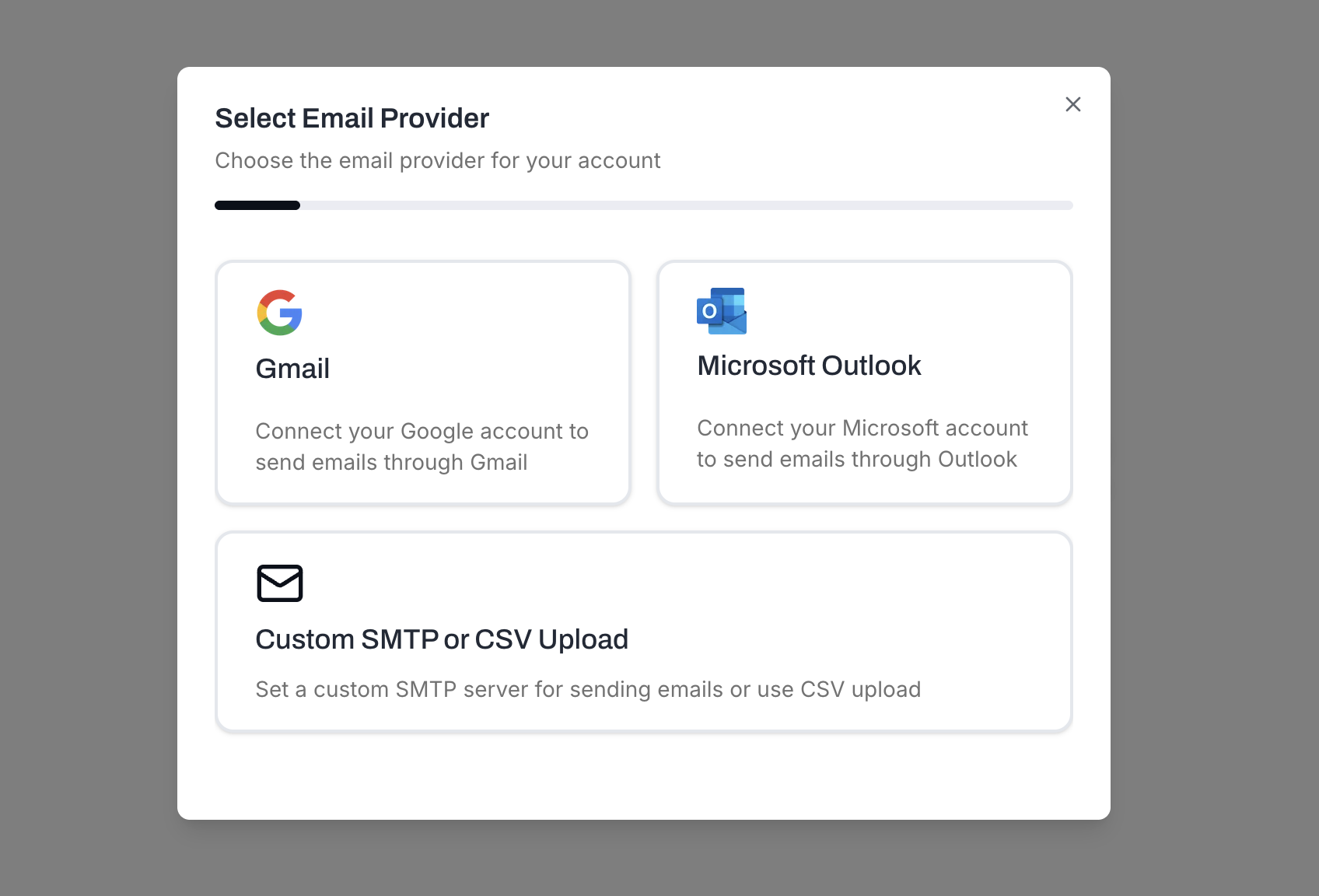
Select Gmail. MailBeast shows the Instructions for Google Workspace dialog.
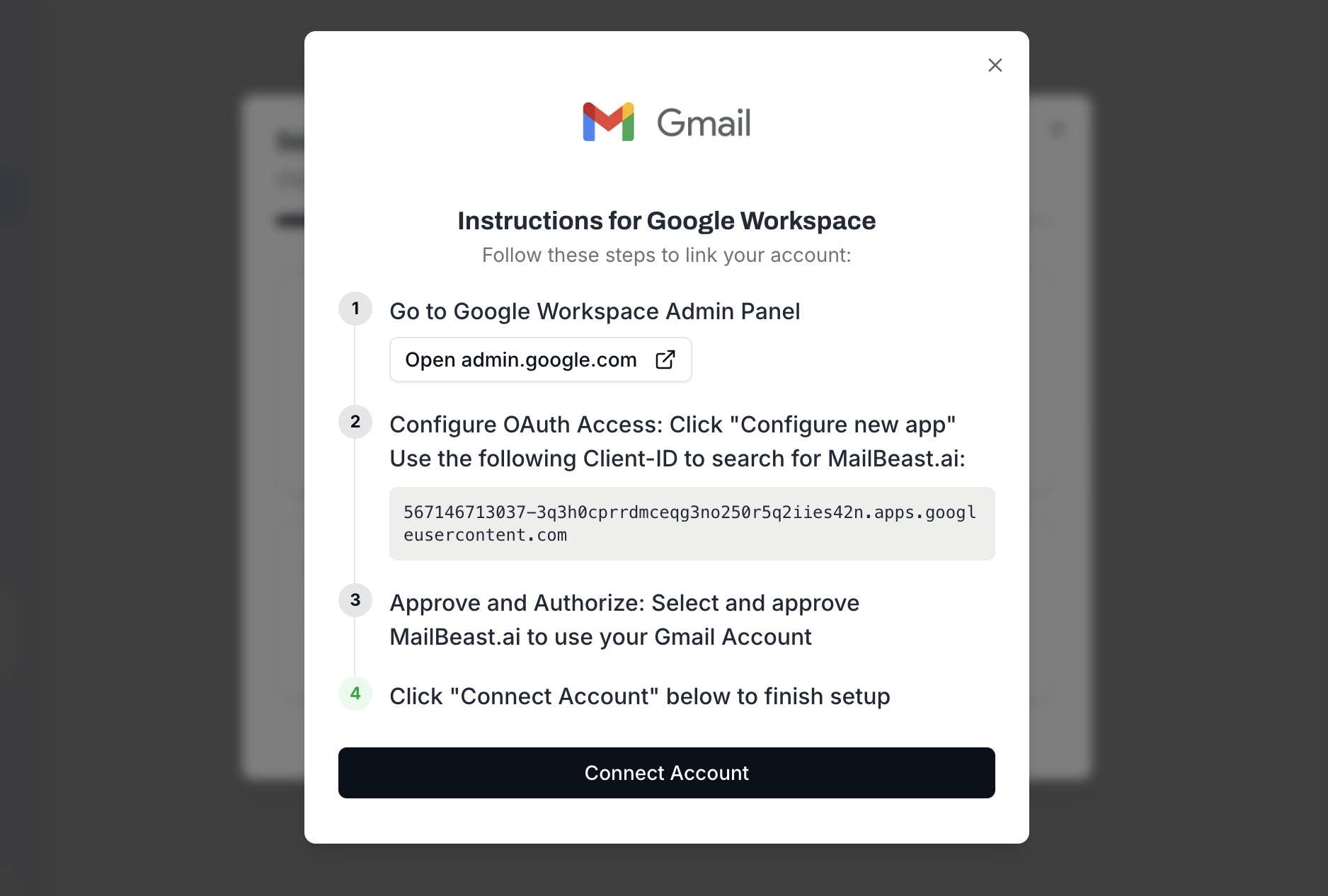
(Optional) Authorize MailBeast in your Google Workspace Admin - see Admin Setup below. Skip this step if you purchased accounts through our email partner inside the app.
Click Connect Account. You will be redirected to Google's consent screen.
Sign in with the Google account you want to connect (or select it if already signed in).
Review the permissions and click Allow.
MailBeast automatically tests your SMTP and IMAP connections. Green check marks confirm a successful setup.

Purchased accounts through our email partner inside the app? You can skip this entirely - admin authorization is already configured.
Before you can connect, your Google Workspace admin must add MailBeast as an authorized OAuth app:
Open Google Workspace Admin Panel (you need admin access).
Go to Security > API controls > App access control.
Click Configure new app > OAuth App Name or Client ID.
Paste the MailBeast Client ID shown in the dialog.
Select and approve MailBeast.ai to access your Gmail accounts.
Tip: This only needs to be done once per Google Workspace organization. After the admin approves the app, all users in the organization can connect their accounts.
When you complete the OAuth flow, you authorize MailBeast to:
Send emails on your behalf via SMTP - this is how MailBeast delivers campaign and warmup emails from your account.
Read incoming emails via IMAP - this powers InboxHub, allowing you to see and respond to replies without leaving MailBeast.
Your Google Workspace admin has not approved the MailBeast application.
Fix: Complete Step 1 above - add MailBeast via Client ID in Google Admin Console > Security > API controls > App access control.
IMAP is likely disabled in Gmail settings.
Fix: Open Gmail > Settings > Forwarding and POP/IMAP > enable IMAP Access > click Save Changes. Then re-run the connection test in MailBeast.
Your admin may have revoked app access - ask them to re-approve MailBeast.
You may have removed MailBeast from Google Account > Security > Third-party apps with account access.
Fix: Open the account in MailBeast and click Reconnect to re-authenticate. See Reconnecting Disconnected Accounts for a detailed walkthrough.
Verify your DNS records to ensure SPF, DKIM, and DMARC are properly configured for your domain.
Enable warmup to build sender reputation before launching campaigns.

