MailBeast supports Microsoft 365 (Business) accounts through OAuth authentication. This means MailBeast never stores your Microsoft password - a secure token handles everything.
Go to Email Accounts and click Add Email Account.
Select Microsoft Outlook. MailBeast shows the Instructions for Microsoft 365 dialog.
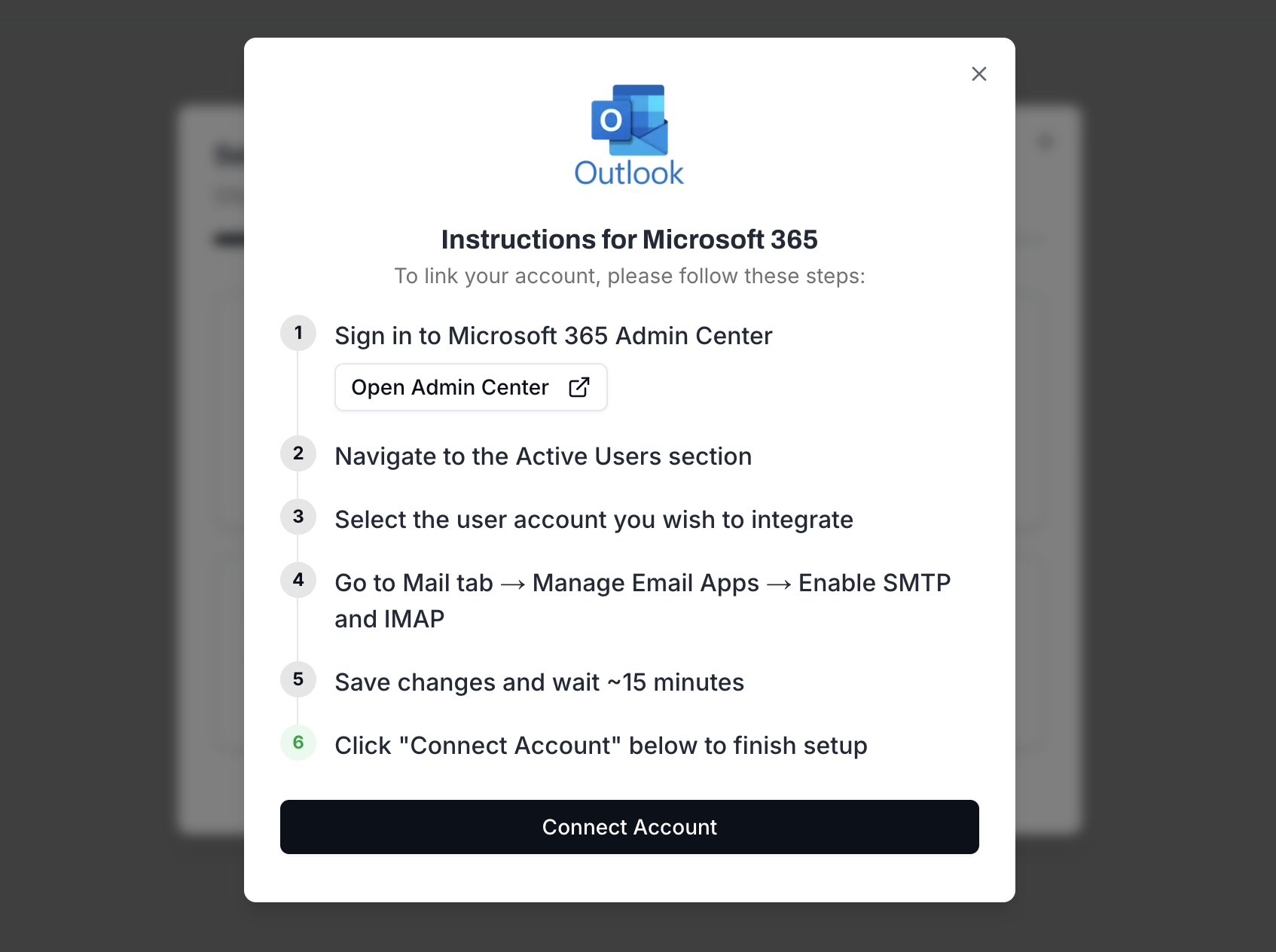
Important step! Enable SMTP and IMAP in your Microsoft 365 Admin - see Enable SMTP & IMAP below.
Click Connect Account. You will be redirected to Microsoft's login page.
Sign in with your Microsoft 365 account.
Review the permissions requested and click Accept.
MailBeast automatically tests your SMTP and IMAP connections and if it is connected, account will be marked accordingly on your email accounts screen.

Purchased accounts through our email partner inside the app? SMTP and IMAP are already enabled - you can skip this section.
Your Microsoft 365 admin must enable SMTP and IMAP for each account before connecting:
Open Microsoft 365 Admin Center (you need admin access).
Navigate to Users > Active Users.
Select the user account you want to connect.
Go to the Mail tab > Manage Email Apps.
Enable SMTP and IMAP (check both).
Save changes and wait approximately 15 minutes for the change to propagate.
Some Microsoft 365 organizations require admin consent before users can connect third-party applications. If you see a "Need admin approval" screen:
Sign in to the Azure Portal.
Navigate to Azure Active Directory > Enterprise applications.
Find MailBeast.ai in the list (or search for it).
Go to Permissions > click Grant admin consent.
After consent is granted, users in your organization can connect their accounts.
Purchased accounts through our email partner inside the app? This step is not needed - admin consent is already configured.
The most common cause is SMTP AUTH being disabled.
Fix: Complete Step 1 above - enable SMTP and IMAP in Microsoft 365 Admin Center for the affected user. Wait 15 minutes, then re-run the connection test in MailBeast.
Clear your browser cookies for login.microsoftonline.com and try again.
Make sure you are signing in with the correct Microsoft account (not a personal account when you meant business, or vice versa).
If you have multiple Microsoft accounts, use an incognito/private browser window to avoid account confusion.
Your Microsoft password may have changed.
MFA settings may have been updated.
Your admin may have changed conditional access policies.
Fix: Open the account in MailBeast and click Reconnect to re-authenticate. See Reconnecting Disconnected Accounts for details.
Verify your DNS records to ensure your domain is configured for deliverability.
Enable warmup to build sender reputation.

