Gmail and Outlook accounts are generally more trusted by email providers, so we recommend using them for best results. However, you can also connect any custom SMTP provider - either manually one by one, or via CSV bulk upload.
If you use an email provider other than Google or Microsoft - for example Zoho, GoDaddy, cPanel-based hosting, or Yahoo - you can connect it to MailBeast using manual SMTP and IMAP configuration.
Go to Email Accounts and click Add Email Account.
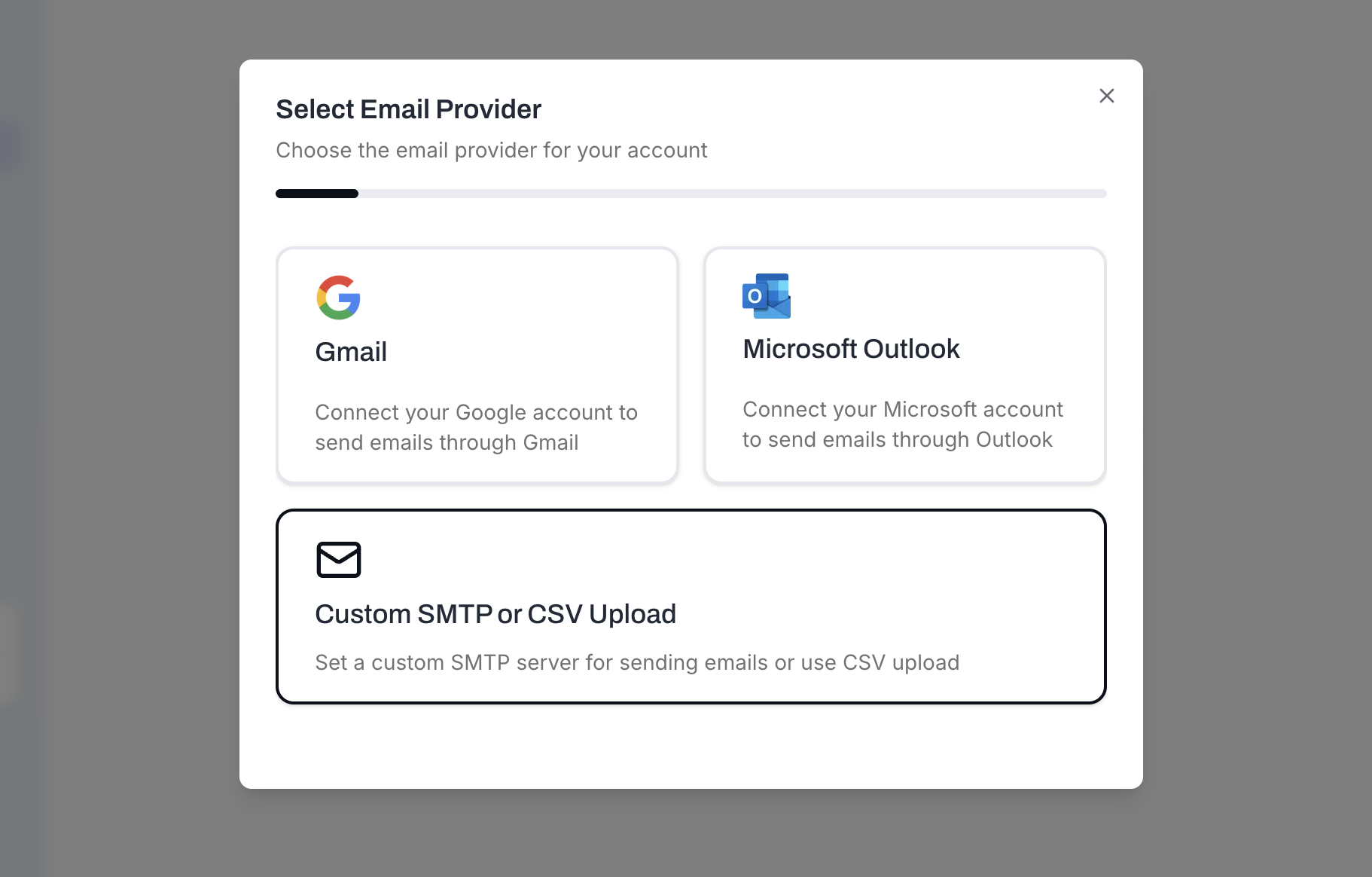
Select Custom SMTP or CSV Upload.
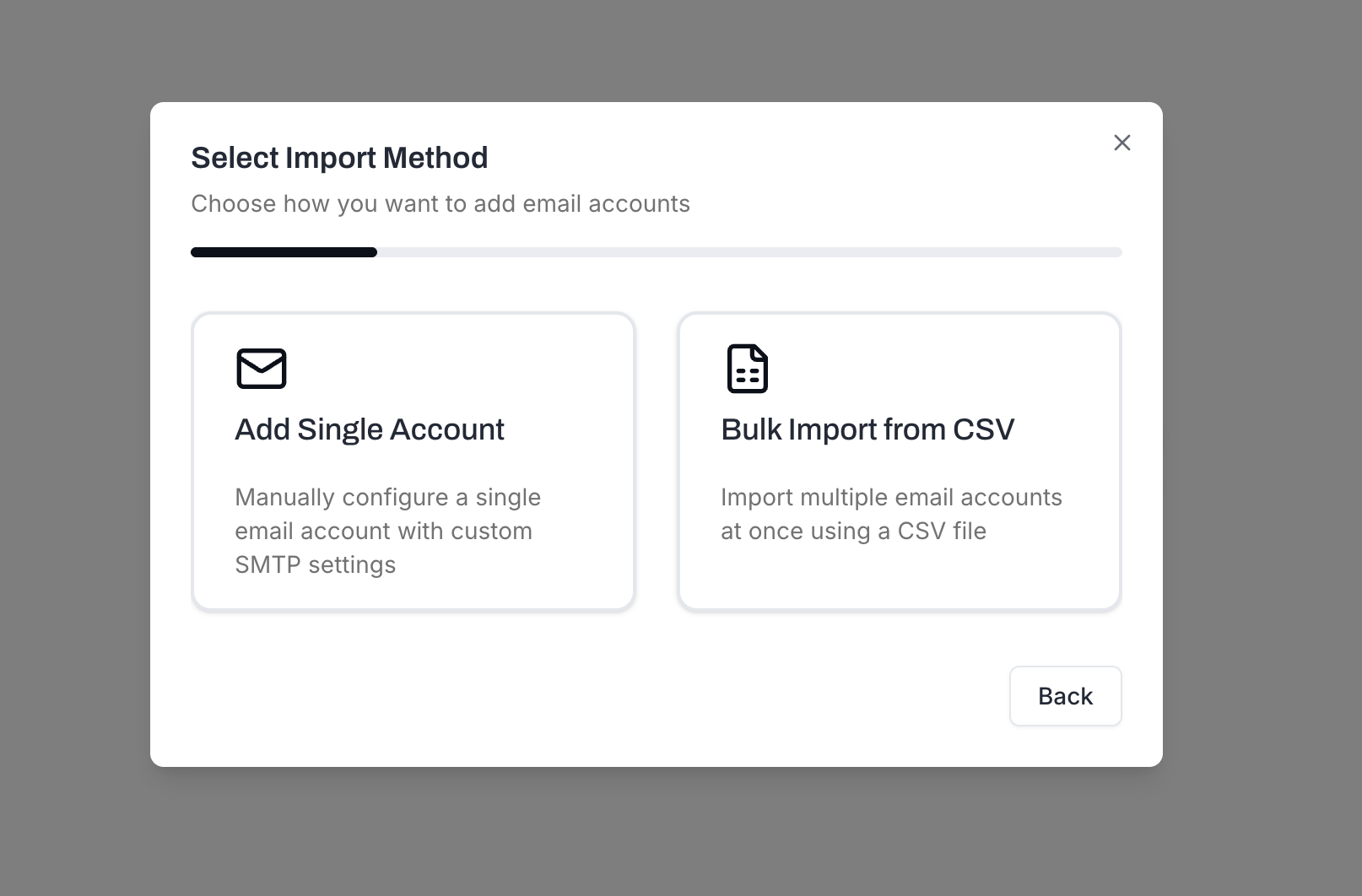
Choose Add Single Account (for manual setup) or Bulk Import from CSV (see Bulk Import).
Enter your email address and display name (the name recipients will see).
Fill in the SMTP settings (for sending) - see SMTP Settings below.
Fill in the IMAP settings (for receiving) - see IMAP Settings below.
Click Test Connection - MailBeast will verify both SMTP and IMAP.
Once both tests pass with green checks, click Save to add the account.
These settings tell MailBeast how to send emails through your provider.
Host: Your SMTP server address (e.g., smtp.zoho.com)
Port: Typically 465 (SSL/TLS) or 587 (STARTTLS)
Username: Usually your full email address
Password: Your email password or an app-specific password
Encryption: SSL/TLS for port 465, STARTTLS for port 587
These settings let MailBeast read incoming emails so they appear in InboxHub.
Host: Your IMAP server address (e.g., imap.zoho.com)
Port: Typically 993 (SSL/TLS)
Username: Usually your full email address
Password: Your email password or an app-specific password
Encryption: SSL/TLS (recommended)

Note: IMAP credentials can be different from SMTP credentials with some providers. If your provider issues separate passwords for each protocol, enter them accordingly.
Always check what is documented by your mailbox provider, below are just some common settings examples.
Provider | SMTP Host | SMTP Port | IMAP Host | IMAP Port |
|---|---|---|---|---|
Zoho Mail | smtp.zoho.com | 465 | imap.zoho.com | 993 |
Namecheap (Private Email) | mail.privateemail.com | 465 | mail.privateemail.com | 993 |
GoDaddy (Workspace Email) | smtpout.secureserver.net | 465 | imap.secureserver.net | 993 |
cPanel Hosting | mail.yourdomain.com | 465 | mail.yourdomain.com | 993 |
Yahoo Mail | smtp.mail.yahoo.com | 465 | imap.mail.yahoo.com | 993 |
Fastmail | smtp.fastmail.com | 465 | imap.fastmail.com | 993 |
Tip: If your provider is not listed, check their support documentation for "SMTP settings" or "IMAP settings."
Double-check your username (usually the full email address, not just the part before @).
Make sure you are using an app-specific password if your provider requires one.
Verify that SMTP access is enabled in your email provider's settings.
Confirm the IMAP host and port are correct for your provider.
Make sure IMAP is enabled in your provider's settings - some providers disable it by default.
Check if your provider requires a separate IMAP password.
Make sure the encryption setting matches the port: SSL/TLS for port 465/993, STARTTLS for port 587.
If using cPanel hosting, the IMAP/SMTP host might need to match your server's SSL certificate hostname (e.g., mail.yourdomain.com or the server hostname provided by your host).
Account Settings - Configure sending limits, signature, and timezone.
Understanding Connection Status - Learn what each status indicator means.
Verify DNS Records - Make sure your domain is properly configured for deliverability.

